• maiweb v0.1.0
  • ★
  • Feedback

github.blog

Visit site ↗

All items hosted on this domain, most recent first.

  • GitHub Blog github.blog developer github technology 2026-06-18 16:00
    ↗

    Learn how pull request limits can help manage contribution volume in your repositories, and see what’s next on the roadmap. The post How pull request limits are cutting down the noise appeared first on The GitHub Blog.

    More people are contributing to open source than ever, most of them trying to help. The challenge is keeping up with the volume. Creating a pull request has never been easier. Reviewing one still takes a human about as long as it ever did. When great contributions and low-quality noise land in the same queue, the ones that deserve attention are harder to find.

    That’s why we’ve introduced pull request limits. It takes on the problem we hear most: too many incoming pull requests, too much low-quality noise, and too few ways to manage the flow.

    How it works

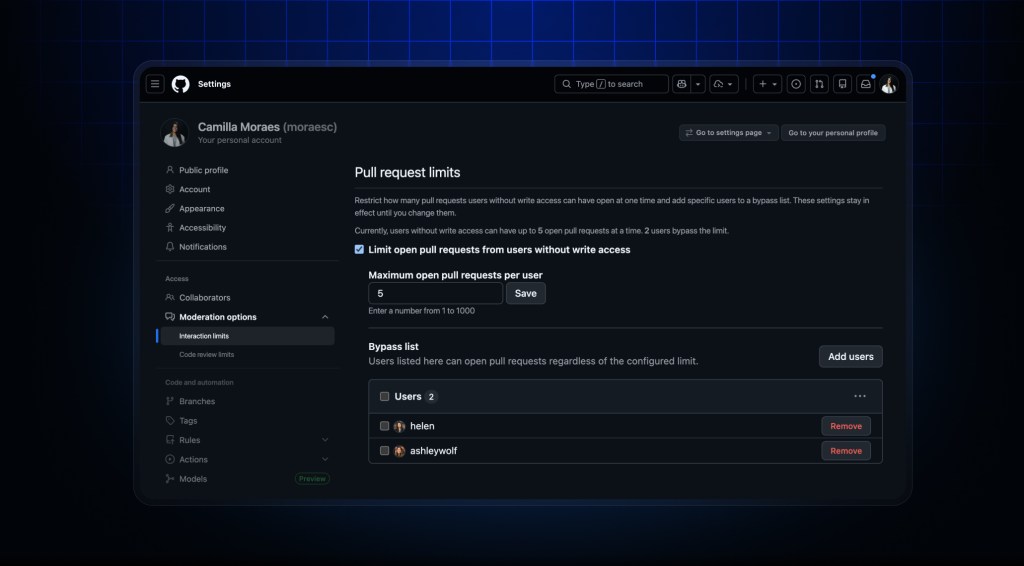
    A pull request limit sets the maximum number of pull requests a user without write access can have open at once in your repository. Hit the limit, and you must close or merge one before opening another. Pull requests opened by Copilot or another AI agent will counts toward your limit. Trusted contributors can be placed on a bypass list, where they are exempted from limits, but don’t gain full contributor access. Draft pull requests will not count towards your limit.

    A screenshot of the 'Moderation options menu' open to the 'Interaction limits' submenu, with 'Pull request limits' at the top. The checkbox 'Limit open pull requests from users without write access' is selected.

    GitHub already has interaction limits, but those are temporary cooldowns. These new pull request limits are persistent and configurable—giving maintainers the control they told us they were missing.

    A cap also changes how contributors behave. When anyone can open a pull request in seconds, a polished change and a rough draft look the same in the queue. But when only a few pull requests can be open at once, a contributor must be selective and prioritize which contributions they want to be reviewed. That first judgment call happens before the pull request reaches you, and a smaller pool makes good work easier to spot.

    It’s helped us want to review pull requests again. Knowing that someone hasn’t just opened 5–10 pull requests that are slop makes it much easier to want to look. Going forward we expect it to help us manage our backlog and ensure the things people are working on are the things we need.

    Nicholas Tindle, AutoGPT

    This feature is great. We’ve had problems on Homebrew for a while with enthusiastic users submitting many pull requests that need near identical review. AI further accelerated it. This allows us to still have outside contribution and maintainers contribute more while gating users to a level of pull requests we can cope with.

    Mike McQuaid, Homebrew

    At OpenClaw we get a huge volume of pull requests from the community and had to build our own bots for fighting spam. We are super glad GitHub has been able to develop out-of-the-box solutions for maintainers now to manage this volume.

    Vincent Koc, OpenClaw

    The cost to create outran the cost to review

    These limits are especially crucial right now because of a change in the ecosystem. In January 2023, developers merged about 25 million pull requests a month across GitHub. Today that number tops 90 million—a roughly 3.6x increase. More people are building in the open than at any point in GitHub’s history.

    Most contributions come in good faith, and even good-faith work can pile up faster than one volunteer can answer. In February, we wrote that open source was hitting its own Eternal September. A pull request limit gives maintainers some of that attention back, without closing the door on the next contributor.

    What’s coming next: More controls for managing contributions

    Pull request limits are just the first step. The same feedback is pointed straight at what comes after: more flexible, more granular control over how contributions flow in.

    Archiving pull requests (shipping soon): Repository admins will be able to archive pull requests, hiding low-quality or spammy pull requests out of the main pull request view. Archived pull requests stay accessible to admins, but can be filtered out of the default list. We chose archive over delete on purpose: some organizations can’t permanently delete pull requests for legal or compliance reasons, and many maintainers want to keep them for context.

    Issue limits (in development): The controls you now have on pull requests will be applied to issues: per-repository caps on how many open issues a user without write access can have at once, with a bypass list, plus an option to restrict issue creation to collaborators.

    Smarter bypass signals (up next): The goal is less manual trust management. Instead of curating a bypass list by hand, you could let contributors clear a limit automatically based on real signals: a previously merged pull request in the repo, account age, or organization membership. That frees maintainers from curating lists by hand and gives them more time to focus on the work itself.

    Cross-repository controls (exploring): A per-repository cap helps with repeated activity in one project, but it does nothing when someone opens pull requests across hundreds of repositories at once. We’re exploring ways to catch contributors who spray pull requests across multiple repositories, whether through trust signals, rate limiting, or other cross-repository controls. 

    Thank you

    Open source runs on the people who show up every day. To everyone who reviews pull requests late at night, mentors a first-time contributor, triages a backlog, files issues, or tells us where our tools fall short: thank you. You shaped this feature, and your input is critical in helping us decide what comes next. We’ll keep building with you.

    Try the pull request limit in your repository settings, and tell us where it helps and where it doesn’t.

    See you in the pull request queue. 🧡

    The post How pull request limits are cutting down the noise appeared first on The GitHub Blog.

  • GitHub Blog github.blog developer github technology 2026-06-17 19:41
    ↗

    How GitHub Copilot is making more of each session go toward useful work, so your credits go further. The post Getting more from each token: How Copilot improves context handling and model routing appeared first on The GitHub Blog.

    As Copilot takes on more agentic work, from planning and editing to debugging, reviewing, and calling tools across longer sessions, efficiency means more than using fewer tokens. It means being smarter about how you use them.

    Increasing efficiency starts with reducing what Copilot has to repeat from turn to turn, including context, tool definitions, and cached state. It continues with choosing the right model for the job. A quick explanation, a focused edit, and a complex multi-file change should not all be treated the same way.

    We are working on both: improving the Copilot harness so more of each session goes toward the task itself, and expanding Auto so Copilot can pick the model that fits the work without asking developers to make that choice every time. This post focuses on harness improvements in GitHub Copilot for VS Code and on ongoing work to expand Auto across Copilot surfaces.

    Increased prompt caching and deferred tools

    In longer GitHub Copilot sessions in VS Code, the harness prepares a lot of recurring information for the model: instructions, repository context, conversation history, available tools, and the current state of the task. Some of that context is needed. Some of it can be cached, deferred, or loaded only when it becomes relevant.

    Two improvements in GitHub Copilot for VS Code are doing most of the work here. Prompt caching helps Copilot reuse model state for repeated prompt prefixes instead of recomputing the same prefix on every request. Tool search lets the model load tool definitions on demand, instead of sending every full tool schema into context on every turn.

    That matters more as agents use more tools. A session may need access to MCP tools, terminal commands, file operations, workspace search, and product-specific actions. Loading every full tool definition up front adds fixed cost to each turn, even when only a small number of tools are relevant to the task. With tool search, Copilot can keep the available toolset broad while sending less unnecessary tool schema into the model.

    For a deeper technical look at the implementation, including prompt caching, cache-control breakpoints, provider-specific tool search, and how these changes work across long-running agentic sessions, read the VS Code technical deep dive.

    Where GitHub Copilot auto model selection fits in

    Auto answers a practical question: which model is the best fit for this task right now?

    After your first prompt, Copilot uses task intent and current model health to choose a model that best fits the task. Different kinds of work, like quick explanations, focused edits, or multi-file changes, do not all benefit from the same level of reasoning, so Auto makes that call without requiring you to tune model settings.

    In our evaluations, no single model consistently performed best across tasks. In many cases, a more efficient model reached the same outcome, while stronger models mattered most when the task required deeper reasoning. Auto learns where stronger reasoning improves the result. It routes up when the task demands it and stays more efficient when it does not. The goal is not to trade quality for cost, but to use the model that best fits the work.

    How Auto selects the right model

    Auto combines two signals: what model is healthy and available right now, and what kind of work Copilot is being asked to do.

    • Real-time model health: a dynamic engine tracks model availability, utilization, speed, error rates, and cost. A model may be capable of handling a task, but that does not mean it is the best choice at that moment. Auto takes current system conditions into account so Copilot can route to a model that is both capable and ready to respond.
    • Task-aware routing with HyDRA: a routing model that considers factors like reasoning depth, code complexity, debugging difficulty, and tool orchestration needs. HyDRA identifies models that can meet the quality bar for the task, then chooses the best fit among them.
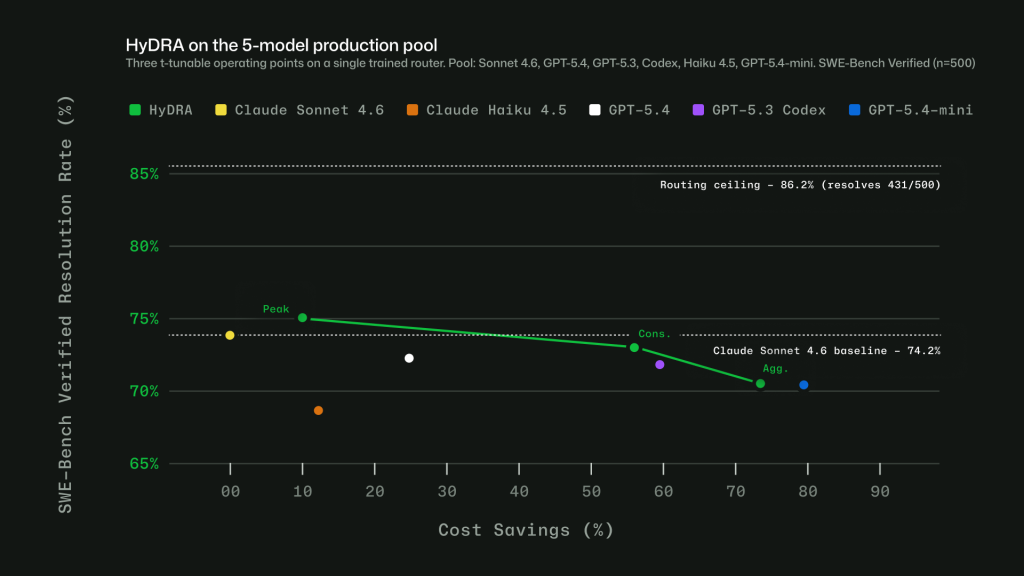
    Chart shows HyDRA quality vs cost savings across a 5 model production pool. Three HyDRA operating points illustrate tunability: (peak) exceeds Sonnet at 12.9% savings; (agg.) balances quality for 72.5% savings. 
    Figure 1: Three HyDRA operating points illustrate tunability: (Peak) exceeds Sonnet at 12.9% savings; (Agg.) balances quality for 72.5% savings.
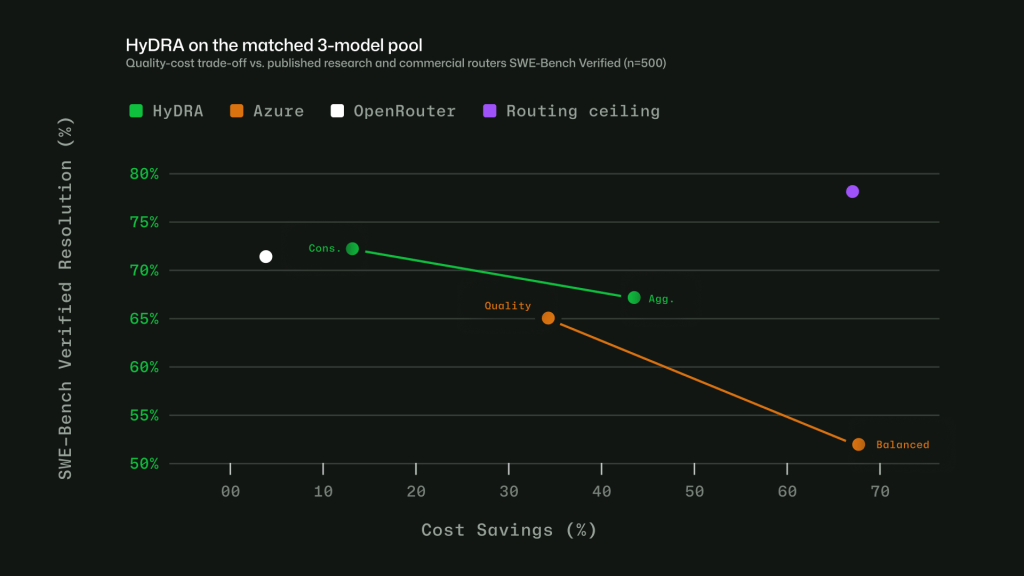
    Chart showing quality and cost tradeoffs of HyDRA and other published research and commercial routers using SWEBench benchmarks. HyDRA (Cons.) ties OpenRouter Auto on resolution rate (70.8%) at 3.3x the savings. HyDRA (Aggr.) outperforms both Azure Foundry operating modes. 
    Figure 2: HyDRA (Cons.) ties OpenRouter Auto on resolution rate (70.8%) at 3.3x the savings. HyDRA (Agg.) outperforms both Azure Foundry operating modes.

    Taken together, these signals let Auto avoid a one-size-fits-all approach. The point is not to send every task to the biggest model, or every task to the cheapest one. It is to choose the model that fits the work.

    Making Auto work in practice

    Getting routing right in evaluations is only part of the problem. To make Auto useful in real workflows, we also had to account for how developers actually use Copilot: conversations get longer, context builds up, tasks shift, and developers work in many languages.

    Cache-aware routing. Switching models on every turn may sound flexible, but it can work against efficiency. When a conversation stays on the same model, the prompt prefix can be cached and reused across turns. Switching models mid-conversation breaks that cache, which can cost more than the routing change saves. Auto avoids that by routing at natural cache boundaries: on the first turn, when there is no cache to lose, and after compaction, when Copilot summarizes older turns and the prompt prefix resets. Between those points, the selected model stays in place so the cache can keep building.

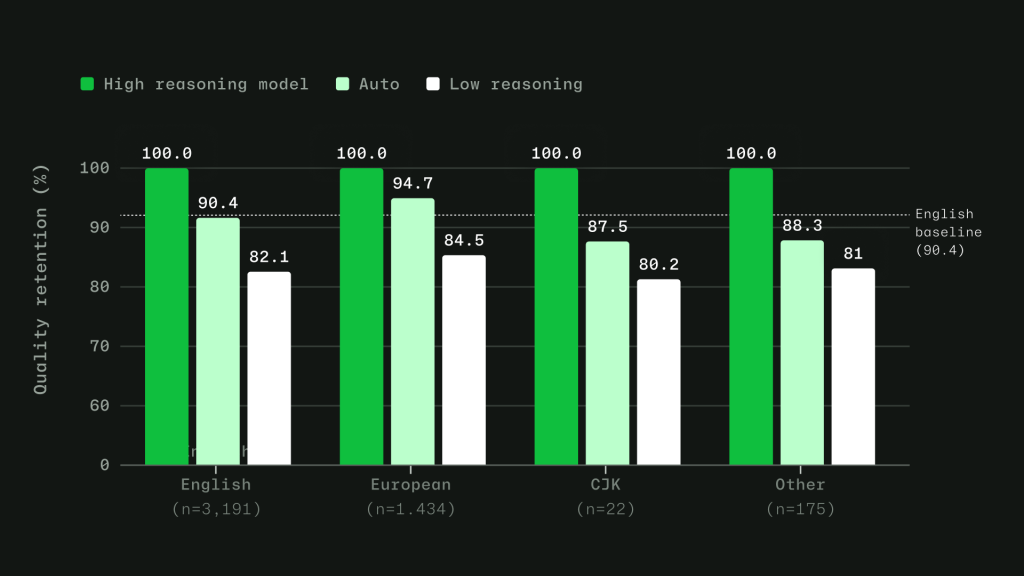
    Routing across languages. Copilot serves developers around the world, so routing has to work in languages other than English. We trained the routing model on conversations across 16 language families, including CJK, European, and others. In evaluations, routing accuracy stayed within four points of the English baseline across language groups, with no statistically significant quality gap.

    Chart showing the efficacy of high reasoning, low reasoning, and Auto across English, European, CJK, and other script families. Evaluation is based on an evaluation set sampled from production VS Code chat telemetry across 19 languages.
    Figure 3: Intelligent routing stays within 4 points of English baseline. Model evaluations across English, European, CJK, and other script families, based on a held out evaluation set sampled from production VS Code chat telemetry across 19 languages.

    Learning when escalation matters. Instead of labeling tasks as simply “easy” or “hard,” we trained the router to learn where models actually diverge. For each training query, responses from a less capable model and a more capable model are scored across quality dimensions. The router learns when the stronger model adds value, and when a more efficient model can produce an equally good result. For context-dependent messages in longer agentic sessions, the router is trained on complete multi-turn conversations, including the original user intent, recent assistant responses, and conversation metadata.

    Auto with task intent is expanding

    Auto with task intent is already live in Visual Studio Code, github.com, and mobile. It gives Copilot more signal about the kind of work you are doing, whether that is coding, debugging, planning, or using tools, so it can make a better model choice for the task.

    We are continuing to expand that experience across Copilot. Next, we are bringing Auto with task intent to more surfaces and adding more ways for teams to make Auto the default.

    • Auto with task intent is coming to Copilot CLI, GitHub App, and additional IDEs.
    • Copilot Free and Student plans will be simplified to leverage Auto as the only model selection option.
    • Admin controls will let organizations set Auto as the default or enforce Auto as the only option.

    Getting more value from your AI credits

    Copilot is getting more efficient by default, but a few habits can help your credits go further.

    • Start with Auto. Auto is the strong default for many tasks because it chooses a model based on what you are trying to do, without making you pick one manually every time.
    • Keep context focused. Start a new session when you switch tasks, compact long-running sessions when needed, and mention the files you want Copilot to use when you already know where the relevant code lives. Less unnecessary context means more of the session goes toward the actual work.
    • Avoid changing models or settings mid-session. Switching models, reasoning levels, context size, or tool configuration can break cache reuse and make Copilot rebuild context. Set up the session the way you want it, then keep related work together.
    • Plan before parallelizing. For larger tasks, ask Copilot to plan first. Parallel agents can be useful when work can truly be split up, but they also consume credits in parallel, so use them deliberately.
    • Use only the tools you need. Tools and MCP servers are powerful, but broad toolsets can add extra context. Enable what is relevant to the task and turn off what you do not need. Check out agent finder in GitHub Copilot to help streamline your tool usage.
    • Check your usage. Your AI usage page shows where credits are going across features and models. In Copilot CLI, session-level usage can also help you spot expensive patterns while you work.

    For the full guide, see How to get more out of your AI credits.

    Get started

    Auto model selection is available today across supported Copilot experiences. To learn more, see the Auto model selection docs. You can also share feedback in Copilot discussions.

    We are continuing to make Copilot more efficient across the system so more of your credits go toward useful work, without requiring you to tune every model choice yourself.

    This post contains contributions from Nhu Do and Aashna Garg.

    The post Getting more from each token: How Copilot improves context handling and model routing appeared first on The GitHub Blog.

  • GitHub Blog github.blog developer github technology 2026-06-16 20:58
    ↗

    Git worktrees have been around since 2015, but it wasn't until recently they became popular. Learn what they are, how to use them, and why you might. The post What are git worktrees, and why should I use them? appeared first on The GitHub Blog.

    It seems like the latest hotness in git these days is the concept of worktrees. Which… is kind of funny because they’ve been around since 2015.

    But, nevertheless, they are cool, and you might be wondering why you’d use them, how they differ from branches, and why they are suddenly so popular.

    Let’s talk about it!

    Context switching with branches and stashing

    Let’s say you lived in a worktree-less world, and were working on a ticket, and suddenly an urgent bug came to you and you had to switch contexts.

    First, you might stash your work:

    git stash "wip feature login" 

    Then you’d switch to your main branch and update:

    git checkout main 
    git pull origin main

    Then make a bugfix branch:

    git checkout -b hotfix-bug

    Then you’d fix everything, commit, and push the branch:

    git add . 
    git commit -m "fix broken submit button" 
    git push origin hotfix-bug

    Then after merging a pull request, you might return back to your computer and pull main and remove the bug branch:

    git checkout main 
    git pull origin main 
    git branch -d hotfix-bug 

    And then you could go back to the feature you were working on:

    git checkout feature-login 
    git stash pop

    Phew. Where were we?

    The mental overhead of switching around, reloading files, reinstalling node_modules based on whatever changed, and so on, is a lot. The context switching burden is heavy.

    Now, this is a basic example, but sometimes developers would work around this kind of chaos with doing some more complicated git stash commands, or even multiple clones of the same repo (I’m guilty of that one).

    Until… worktrees!

    Context switching with worktrees

    With worktrees, you never leave your branch and you never stash, and your editor context for your original feature stays untouched.

    git worktree add ../hotfix-workspace -b hotfix-bug main

    This instantly creates a sibling folder called hotfix-workspace, and bases it on main, and checks out a new branch called hotfix-bug.

    Now you can open that folder in a new editor window (or cd into it) and fix the bug. Your original editor window stays exactly as you left it.

    cd ../hotfix-workspace 
    # ...fix fix fix... 
    git add . 
    git commit -m "fix broken submit button" 
    git push origin hotfix-bug

    You merge the pull request online just like before, and once it’s merged, you can simply delete the temporary folder.

    cd ../main-project 
    git worktree remove ../hotfix-workspace

    This is so much smoother! Worktrees can go beyond the git command line, too. For example, VS Code has full worktree support built in. You have options! And no matter where you work, worktrees give you zero risk of stash conflicts, there’s no editor disruption, and you can truly work in parallel.

    So… why now?

    For a really long time, worktrees were relatively unknown. Most developers had never heard of them, because either Git GUIs didn’t support them (or treated them as second-class citizens), or because they just usually followed the known pattern of feature branch, then work, then PR, then merge, then repeat.

    Now, our work as developers has changed. AI has made us work in parallel more than we ever have before in the history of software development. Developers run so many sessions in parallel, and “code review culture” is growing beyond “code writing culture.”

    Agents and humans can do more in parallel with worktrees. It’s the default mode for the GitHub Copilot app, and for many other modern tools.

    What’s the catch?

    Worktrees do solve a whole lot of issues, but there’s definitely some things to watch out for.

    • Dependency bloat: each worktree folder requires its own copy of your project dependencies. If you’re running npm install or pip install across multiple of them, your computer might get very full, very quickly.
    • Folder management: you have to delete the worktree folders, to avoid cluttering your parent directory over time. Apps like the GitHub Copilot app do often handle this for you, but it’s still something you might have to do yourself if you’re operating in the terminal yourself.
    • Global .gitignore requirements: if you create worktree folders inside your main repo directory, you have to manually add them to .gitignore to not accidentally track them. You can make these worktrees outside of your main repo (and many apps do that by default), but it’s worth noting.
    • One branch limits: Git prevents you from checking out the exact same branch in two different worktrees at the same time to prevent data corruption.

    How do I use worktrees in the GitHub Copilot app?

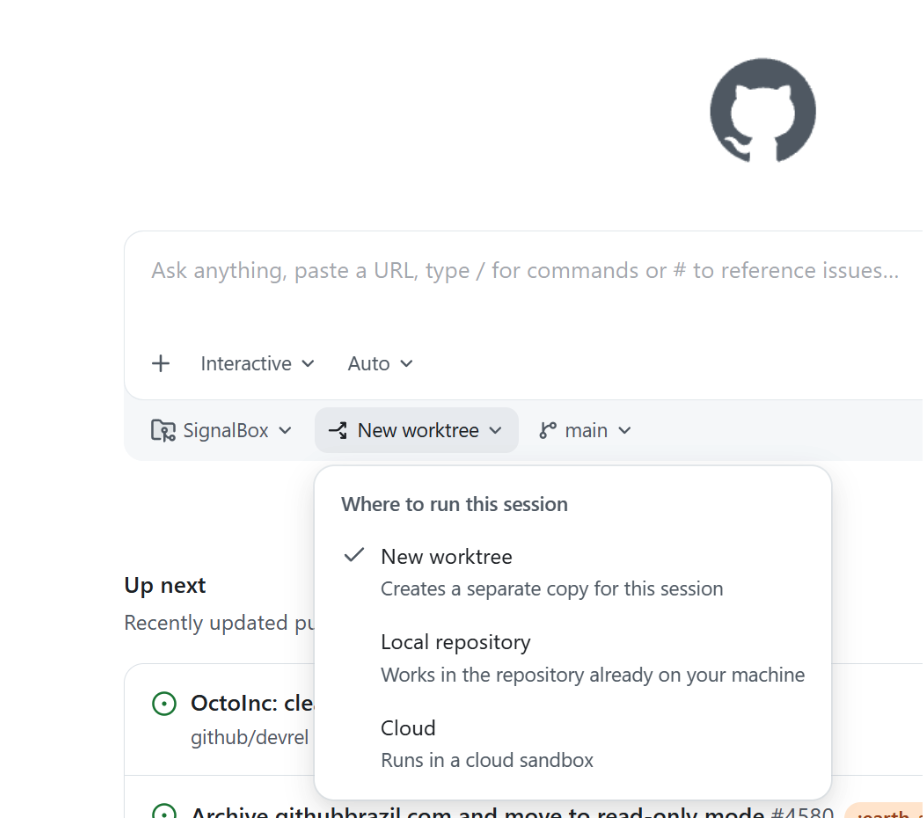
    Great question! What’s awesome is they “just work” out of the box. When you open the app, there’s a dropdown that asks you where you want to run your new session on the home screen. The default is a new worktree.

    Screenshot of the 'New worktree' dropdown in the GitHub Copilot app. Options are 'New worktree', 'Local repository', or 'Cloud.'

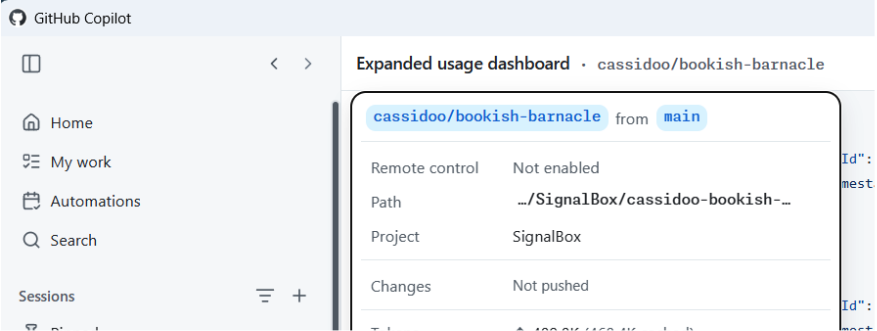
    Then, once you kick off a new session, you can click the session name at the top of the app, and you’ll see the (fun!) generated name of your worktree, as well as the path where it’s located, the project that worktree is for, and details about the changes that you’ve made.

    Screenshot of the worktree generated in the previous step.

    Easy peasy lemon squeezy!

    Should I use worktrees?

    I will give you the most senior developer answer I can: It depends! You might prefer working in one way or another. You might not do as much work in parallel and like the mental model of branches and stashing. You might only do worktrees from now on. You might want to do both!

    The world’s your oyster, and you can try them all in the GitHub Copilot app today.

    The post What are git worktrees, and why should I use them? appeared first on The GitHub Blog.

  • GitHub Blog github.blog developer github technology 2026-06-15 20:15
    ↗

    GitHub Copilot CLI for Beginners: Learn how to use slash commands to control your terminal AI agent. The post GitHub Copilot CLI for Beginners: Overview of common slash commands appeared first on The GitHub Blog.

    Welcome back to GitHub Copilot CLI for Beginners! In this series (available in video and blog format), we’ll give you everything you need to get started using GitHub Copilot CLI. So far in this series, we’ve covered how to get started and when to use interactive and non-interactive modes. In this edition, we’ll learn what slash commands are, why they matter, and how to use slash commands to control GitHub Copilot efficiently. You can complete tasks like switching models, checking token usage, and resuming past sessions right from your terminal.

    Let’s dive in!

    Understanding slash commands in GitHub Copilot CLI

    When working in Copilot CLI, one of the most powerful concepts to learn early on is slash commands. Slash commands are built-in controls that you can access directly from the command line. Acting as your control surface within Copilot CLI, slash commands allow you to:

    • Guide Copilot’s behavior
    • Inspect changes
    • Manage context
    • Move efficiently across sessions and projects
    • Keep permissions tidy

    Slash commands can be thought of as your command center for interacting with Copilot CLI. To look at all of the options available, just type / in the command line for a scrollable list of all currently supported slash commands.

    Let’s take a look at some of the most popular ones.

    Choosing the right model

    Different models are optimized for different kinds of work. If you want to switch models, type /model into the command line. This will display a list of available models, along with key details like:

    • Capabilities: Some are better for quick, lightweight tasks like refactoring, while others more efficiently handle deeper reasoning such as feature planning.
    • Availability: The list may vary depending on your plan or organization’s settings.
    • Cost: Numbers shown on the right of each model indicate cost multiplier, helping you choose the right balance between performance and usage in relation to your plan.

    Choosing the right model can significantly impact both speed and results.

    Managing context and token usage

    Copilot CLI operates within a context window, which determines how much information it can “remember” during a session. If you want to check your current usage, type /context to learn how many tokens you have left, along with system usage and available buffer.

    If you find that you’re running low on space, you can free up space by typing /compact in the command line. This summarizes your current conversation so you can continue without having to start a new session. Copilot CLI will do this automatically when you approach the limit, but you can also do this manually if you want to transition to a new task or clean up context mid-session.

    If you’d rather start fresh and completely reset your environment, you can use /clear to clear the session entirely.

    Working across sessions

    If you want to resume a previous session, you can type /resume. This will bring up a list of previous sessions you’ve had, including both local and remote sessions. Entering a previous session will show you your session history, and you can pick up right where you left off.

    Inspecting changes

    As you work with Copilot to make changes to your project, it’s important to keep track of what’s changed. If you want to see what the changes are, run /diff to see recent updates. This gives you a clear view of what modifications were made during your session, so you can validate changes before moving forward.

    Navigating projects and directories

    If you want to work across repositories or directories, you don’t have to exit Copilot. You can type /cwd to change your working directory to another repository. This allows you to scope Copilot’s work to a specific part of your project and helps you stay efficient while multitasking across codebases.

    Managing tool permissions

    In the past, you might have granted Copilot CLI permission to perform actions like editing files. Say you’re switching to a repository you want to be more careful in and want to reset those permissions: you can do so by running /reset-allowed-tools.

    Take this with you

    Using these slash commands gives you even better control over Copilot CLI—and the more familiar you become with them, the more deliberate your workflow becomes.

    Whether you’re switching models, managing context, or navigating across projects, using slash commands in CLI gives you the tools you need to stay in control. And if you haven’t already: open up your terminal, type /, and explore! There are many more slash commands to discover.

    Happy coding!

    Looking to try GitHub Copilot CLI? Read the docs and get started today.

    More resources to explore:

    • GitHub Copilot CLI for Beginners video series
    • GitHub Copilot CLI for Beginners: Getting started with GitHub Copilot CLI
    • GitHub Copilot CLI for Beginners: Interactive v. non-interactive mode
    • GitHub Copilot CLI 101: How to use GitHub Copilot from the command line
    • Best practices for GitHub Copilot CLI

    The post GitHub Copilot CLI for Beginners: Overview of common slash commands appeared first on The GitHub Blog.

  • GitHub Blog github.blog developer github technology 2026-06-15 19:17
    ↗

    A new repository-level dataset, published on GitHub under CC0-1.0, helps researchers and developers discover multilingual developer content across READMEs, issues, and pull requests. The post Accelerating researchers and developers building multilingual AI with a new open...

    Software may be written in programming languages, but human language is at the heart of developer collaboration. Developers explain how projects work in READMEs. They ask for help in issues. They review, debate, and improve code in pull requests. That collaboration often happens in English—but not always. As AI becomes a bigger part of how developers build software, multilingual developer content matters more than ever.

    Today, GitHub is publishing the GitHub Multilingual Repositories Dataset, a repository-level metadata dataset designed to help researchers and developers discover public GitHub repositories with evidence of non-English natural-language content. When building the dataset, we found that language distribution differs across READMEs, issues and pull requests: Korean is the most common non-English language in issue text, but only the fifth-most common in READMEs. Portuguese tops the non-English README list with more than 3 million repositories.

    The dataset is now available on GitHub under CC0-1.0. It follows through on a commitment we made in 2025, as part of Microsoft’s European Digital Commitments, to make multilingual data more accessible, including to open source AI developers.

    What’s in the dataset

    The GitHub Multilingual Repositories Dataset is intentionally not a dump of repository content. Instead, it is a metadata dataset that helps developers and researchers find repositories where multilingual collaboration may be happening. The dataset covers over 80 million classification rows across more than 40 million repositories. For each public repository, we provide:

    • Language classifications of the README, the most-commented issue, and the most-commented pull request, with the first 150 characters of each used as the input sample. We exclude texts under 20 characters.
    • Classifications for each text source, from fastText, gcld3, and lingua-py, each with a confidence score. The dataset only includes classifications with >0.5 confidence.
    • Repository metadata: creation timestamp, disk usage, stars, forks, primary programming language, SPDX license, issue and pull request counts, and the snapshot date.

    We deliberately did not collapse the three classifiers into a single label. Different classifiers have different coverage and confidence calibration, especially for lower-resource languages. By exposing all three, we let you decide how strict you want to be. Want a high-precision Greek subset? Require all three classifiers to agree above some confidence threshold. Want broad recall for an exploratory study of Romance languages? One classifier may be enough.

    What you can build with it

    The dataset is designed for the kind of work that’s hard to do with general web text:

    • Discover repositories likely to contain developer documentation or collaboration in specific languages.
    • Study how non-English developer communities use issues, pull requests, and READMEs.
    • Build evaluation sets for AI coding tools, doc generators, or review assistants that need to behave well across languages.
    • Encourage decision-makers to expand language coverage for new developer tools and AI features using data-backed arguments on the rich multilingual diversity of developers.
    • Measure representation of European and other underrepresented languages in open source.

    Some caveats

    Language identification is hard, especially in software repositories. Repository text is often short. It may include badges, templates, installation commands, code snippets, usernames, or mixed-language content. A 150-character sample may not represent the whole repository. Classifiers also vary in coverage and calibration, especially for lower-resource languages.

    That is why the dataset should not be treated as a ground-truth benchmark for language identification. Instead, it is designed as a transparent discovery tool. Users can inspect classifications, confidence scores, and sources, then choose the precision and recall tradeoffs that fit their own research or development workflow.

    The dataset also should not be used to infer sensitive attributes about repository owners, contributors, or communities. The signals are repository-level metadata, not person-level attributes.

    Why open multilingual data matters

    Today, many European languages remain underrepresented in the online text used to build and evaluate AI systems. That creates a risk that AI tools work well for some developers, languages, and communities, while leaving others behind. Open data can help close that gap. We built this dataset because developer content is different from general web text. READMEs, issues, and pull requests contain the language of software collaboration: installation instructions, bug reports, feature requests, review comments, and community norms. That context can help build AI systems that better understand how developers actually work.

    By making multilingual developer-content signals easier to find and analyze, this dataset gives researchers, open source developers, and model builders another tool for studying language representation in software development. It can help identify gaps, support better evaluation, and inform more inclusive AI tools for developers across Europe and beyond. It also reflects a broader principle: Building AI for developers should include the communities, languages, and workflows developers actually use.

    What’s next

    We’ll be discussing the dataset, and the broader importance of open data for multilingual AI, at the Open Innovation Dialogue Hub in Strasbourg on June 16. The event is co-organized by the Microsoft Open Innovation Center, the Council of Europe, and GitHub, and will bring together policymakers, researchers, cultural institutions, and open innovation leaders to discuss AI, linguistic diversity, cultural heritage, and open data.

    Multilingual AI needs multilingual developer communities. We hope this dataset helps more people study, support, and build for them. By releasing it under CC0-1.0 on GitHub, we’re inviting researchers, open source maintainers, and model builders to use it, critique it, extend it, and build evaluation sets and tools on top of it.

    If you do something interesting with it, we’d love to hear about it.

    The post Accelerating researchers and developers building multilingual AI with a new open dataset appeared first on The GitHub Blog.

  • GitHub Blog github.blog developer github technology 2026-06-12 22:26
    ↗

    Better orchestration, fewer handoffs, faster progress, without a single new knob. The post How we made GitHub Copilot CLI more selective about delegation appeared first on The GitHub Blog.

    In agentic systems, more delegation isn’t always better. Imagine asking Copilot CLI to make a simple change. Instead of handling it directly, it spins up a helper agent that searches the repository, waits on a result, and stalls. Work that should have taken one step now takes three. While some tasks genuinely benefit from a specialist subagent—like exploring an unfamiliar repository, checking an independent area of the code, or running a long command while the main agent keeps moving—delegation isn’t free. Every handoff adds coordination overhead, tool calls, and wait time. If an agent delegates too eagerly, the “help” can become friction.  

    We recently released an improvement to our agentic harness called smarter subagent delegation. This makes Copilot CLI more selective by helping the main agent:  

    • Stay focused when it can move faster on its own.
    • Delegate when a specialist creates real leverage.
    • Parallelize work when tasks are truly independent.

    Smarter subagent delegation has now rolled out to 100% of Copilot CLI production traffic. If you want to get started today, simply update GitHub Copilot CLI by running the /update command in your terminal to version 1.0.42 or later. 

    In a production A/B test, this improvement reduced tool failures per session by 23%, including a 27% reduction in search tool failures and an 18% reduction in edit tool failures. It also improved total user wait time by 5% at P95 and 3% at P75, with no quality regression. Here, P95 captures wait time near the slowest 5% of sessions, while P75 reflects wait time toward the slower end of typical sessions. This means fewer unnecessary handoffs, fewer repeated searches, fewer failure-prone tool paths, and less waiting during long-running coding tasks. 

    In this post, we’ll walk through how we identified unnecessary delegation in Copilot CLI, what we changed to make delegation more selective, and how we validated those changes through offline evaluation and production A/B testing. We’ll also show why those changes led to fewer failures and less waiting—and what that looks like for developers using Copilot CLI day to day. 

    The problem: Delegation is powerful, but not free

    Subagents are one of the most important capabilities in an agentic CLI. They let Copilot break down complex work, run investigations in parallel, and keep the main agent focused on coordinating the final answer. For large codebases and multi-step engineering tasks, that can be the difference between a slow linear workflow and an efficient parallel one. 

    But delegation introduces its own failure modes: 

    • Unnecessary handoffs for simple tasks that the main agent could complete faster on its own. 
    • Overuse of exploration subagents when the handoff already contains enough context.
    • Repeated or overlapping searches across the main agent and subagents. 
    • Sequential delegation, where the main agent waits for a subagent instead of treating delegation as an opportunity for parallel work. 
    • Failure-prone subagent paths, including stale file paths, moved files, incorrect relative paths, and workspace mismatches.  
    Animated Copilot CLI session showing unnecessary subagent delegation. The main agent idles while multiple subagents repeat searches, use stale or ambiguous file paths, and accumulate tool failures, increasing from 0 to 5.
    Figure 1. Example: tool call failure by subagents while main agent is idling. 

    Our goal: help developers use subagents when they create leverage, avoid them when they add overhead, and parallelize work when the task genuinely benefits from independent execution. 

    From problem signals to shipped improvement

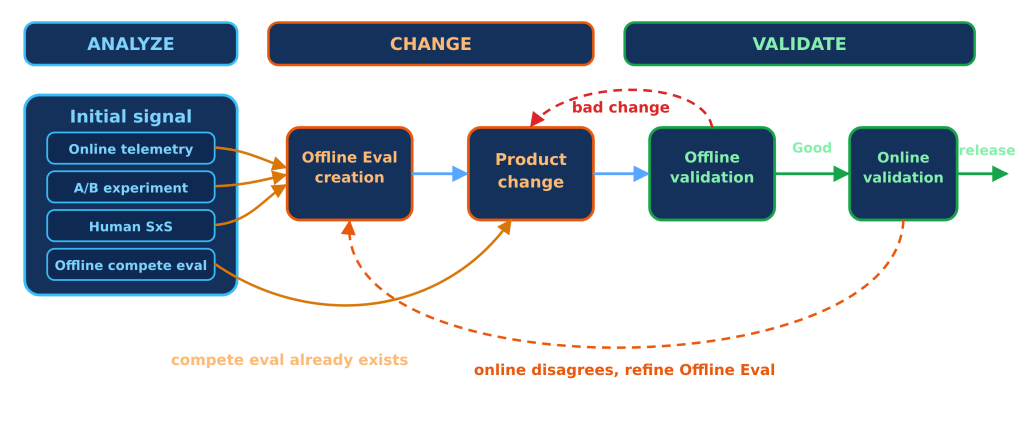
    The way we identified the problem became the way we solved it. Instead of treating agent trajectory analysis, product changes, evaluation, and rollout as separate activities, we used them as one feedback loop: observe the agent behavior, isolate the orchestration bottleneck, make a targeted change, validate it offline, measure it online, and ship only once the end-to-end workflow improved. 

    Flow diagram of the smarter subagent delegation improvement loop: analyze initial signals from telemetry, A/B experiments, human side-by-side reviews, and agent comparison evals; create offline evals; make a product change; validate offline and online; then release when results are good. Dashed arrows show feedback loops for bad changes and online disagreements.
    Figure 2. The end-to-end improvement loop: analyze, change, validate, and ship.

    1. Analyze: Let LLMs identify the delegation bottleneck

    Instead of manually reviewing agent sessions, we used LLMs to analyze full trajectories and identify where orchestration was helping versus where it was adding overhead. That analysis surfaced a consistent pattern: subagents were sometimes being invoked for tasks that were already narrow, obvious, or fully described in the handoff. 

    In those cases, the subagent could spend time re-searching the repository even though the main agent already had enough context to act directly. That clarified the improvement target: keep simple discovery-and-edit tasks in the main agent, and reserve subagents for work that is broader, cross-cutting, or naturally parallelizable. 

    2. Change: Refine the orchestration policy

    After identifying the bottleneck, we used LLMs to help translate that diagnosis into a more selective orchestration policy.

    Copilot CLI should handle focused work directly: find a file, read it, make a targeted change, and verify it. Delegation is more useful when the work requires independent context, broad exploration, or parallel execution.

    In practice, that means starting with the narrowest effective path, escalating when complexity or uncertainty creates value, and stepping back down when the task becomes focused again. Subagents should be treated as a parallelism tool, not a pause button. When Copilot launches a subagent, the main agent should continue making progress on independent work rather than simply waiting for the result.

    When a subagent is used, the handoff should also be specific: what the user asked, what is already known, what the subagent owns, and what kind of result the main agent needs back. 

    3. Validate: Test offline, confirm online, then ship

    Before broad rollout, we validated the change with automatically generated regression cases and existing benchmarks. This helped confirm that the new delegation guidance reduced avoidable overhead without breaking cases where subagents genuinely add value. 

    Finally, we moved through staff and public A/B testing, then analyzed production metrics across reliability, responsiveness, subagent workload, and quality. The gains did not come primarily from making individual LLM calls faster. Instead, it reduced orchestration overhead by avoiding unnecessary subagent paths and lowering subagent workload per user. 

    That end-to-end process let us move from problem signal to shipped improvement while keeping the user experience stable: fewer avoidable handoffs, fewer failure-prone tool paths, and no quality regression. 

    Outcomes

    After rolling smarter subagent delegation to production traffic, we saw measurable percentage improvements across reliability and responsiveness (Table 1): 

    DimensionMetricDelta
    Reliability Tool failures per session 23% reduction 
    Reliability Search tool failures27% reduction
    ReliabilityEdit tool failures18% reduction
    ResponsivenessTotal user wait time at P955% lower
    ResponsivenessTotal user wait time at P753% lower
    QualityQuality metricsNo regression
    Table 1. Production A/B test outcomes
    MetricDelta vs. controlInterpretation
    Failed raw subagent search calls15% reductionReliability – fewer failure-prone subagent search paths.
    Average subagent LLM duration per user12% lowerResponsiveness – reduced orchestration overhead per user.
    P95 subagent LLM duration per user18% lowerResponsiveness – better worst-case subagent overhead.
    Table 2. Directional agent trajectory analysis behind the A/B test outcome

    These results show that better orchestration can improve the developer experience even when the visible feature surface doesn’t change. By teaching Copilot CLI when to delegate, when not to delegate, and how to parallelize the right work, we reduced friction in the agent loop itself. 

    That is the power of GitHub Copilot as a system: the experience gets better not because developers are given more switches to manage, but because Copilot becomes better at allocating models, tools, and subagents behind the scenes. 

    How this benefits developers today

    For developers using Copilot CLI, this should feel like a smoother day-to-day experience. Straightforward tasks are more likely to be handled directly, complex tasks still get specialist help when it adds value, and long-running sessions keep moving with less unnecessary waiting. In practice, Copilot CLI becomes more efficient and less noisy without asking developers to work differently. 

    The change is intentionally behind the scenes. Your workflow stays the same, but Copilot CLI is better at coordinating the work: fewer unnecessary handoffs, less repeated search work, fewer failed tool paths, and faster progress on long-running or multi-step tasks. 

    What’s next

    This work is one step toward our larger goal of improving how Copilot CLI chooses the right model, agent, and tools across your workflow. While having more agents and models available expands what Copilot can do, the value to developers depends on how well Copilot applies them across the work they are already doing, like reading files, running commands, and moving from an issue toward a pull request. 

    As tasks become more complex, the quality of that orchestration matters more. The best system is not the one that delegates the most, but the one that knows when to act directly, when to delegate, and how to keep work moving without adding friction. 

    The next step is making Copilot CLI more adaptive across models, agents, skills, and tools, so developers don’t have to decide whether a task needs a larger model, a specialist subagent, or a procedural skill. Copilot should make that decision based on the task, repository context, policy, and expected outcome. 

    We will continue improving how Copilot CLI plans work, coordinates subagents, and measures end-to-end outcomes. That includes better visibility into main-agent and subagent behavior, deeper analysis of failure reasons, and stronger proxy metrics for orchestration quality. The goal is simple: less waiting, fewer avoidable failures, and more useful progress from every agent session. 

    Get started today and share feedback

    Update GitHub Copilot CLI by running the /update command in your terminal to version 1.0.42 or later.  

    Already tried it? We’d love to hear what you think. Share feedback with the /feedback command in a CLI session or open an issue in our public repository. 

    Acknowledgements

    Smarter subagent delegation was made possible by collaboration across Code|AI, Copilot CLI, experimentation, human evaluation, and product teams. Thanks to everyone who helped identify the problem, design the process, validate the outcome, and ship the improvement to production. 

    The post How we made GitHub Copilot CLI more selective about delegation appeared first on The GitHub Blog.

  • GitHub Blog github.blog developer github technology 2026-06-11 21:30
    ↗

    In May, we experienced nine incidents that resulted in degraded performance across GitHub services. The post GitHub availability report: May 2026 appeared first on The GitHub Blog.

    In March and April we shared updates on GitHub’s availability and infrastructure investments. As that work continues and we approach some major milestones, we wanted to start sharing more regular updates in our monthly availability reports.  So before we dive into incidents from May, here’s how we’re tracking with our ongoing work to make GitHub more reliable.  

    Our progress in making GitHub more resilient

    The short version: GitHub’s traffic is growing rapidly, driven in large part by AI-assisted and agentic development workflows, and we’ve been transforming our infrastructure to keep up with it. That means moving to Azure for elastic capacity, breaking our monolith apart into isolated services, and eliminating the shared failure points that have driven past incidents. 

    Here’s where we stand. We’re now serving 40% of monolith traffic from Azure (up from 8% in February), with Git traffic at 30% and repository replication at 99%. We’ve more than doubled our effective capacity in four months. At the same time, we’re completing the isolation of our primary database cluster: splitting users, authentication, and authorization into independent domains so that a problem in one can no longer cascade across the platform. Our new users service is fully cut over, and handling double the traffic at substantially lower database cost. Stateless authentication tokens are also rolling out, eliminating per-request database lookups that amplified pressure during traffic spikes. 

    We are making structural changes that permanently remove failure modes. We acknowledge that we have work to do, but we’re committed to getting it done and making GitHub reliable when and where you need it. The principle guiding our decision is simple: availability, then capacity, then features. 

    Thanks for your partnership as we keep building GitHub’s reliability and resilience. 


    In May, we experienced nine incidents that resulted in degraded performance across GitHub services.

    May 04 15:45 UTC (lasting 55 minutes)

    On May 4, 2026, between 15:34 and 16:40 UTC, github.com experienced a service disruption that produced elevated latency and an increased rate of request failures across a broad set of customer-facing services. Total customer impact lasted approximately one hour and six minutes. 

    The most significantly impacted service was pull requests, which was statused Red for the duration of peak impact. Issues, actions, webhooks, and Git operations experienced elevated latency and intermittent errors. A number of dependent services—including Codespaces, Pages, Packages, OAuth and GitHub Apps, Marketplace, and Copilot—also saw varying degrees of degraded performance due to shared data dependencies. At peak, approximately 1.3% of requests returned a 5xx response, averaging around 0.46% across the duration of the incident. 

    The disruption was triggered by a routine online schema migration running against a large, heavily-accessed database table. The migration had been progressing without issue for several hours, but as traffic ramped up toward the weekly peak, the combined load from the migration and normal production traffic saturated database connection capacity. This produced query contention on a primary database and cascading timeouts across services that depend on it. 

    The incident was detected within approximately three minutes of the first signs of impact through a combination of automated monitoring and on-call observation. Once the contributing migration was identified, it was paused, and dependent services recovered shortly thereafter. Time to mitigation was approximately 33 minutes, and full resolution followed approximately 30 minutes later 

    As follow-up, we are implementing several improvements to reduce the likelihood and blast radius of a similar event. Migrations against large, high-traffic tables will be more tightly aligned with low-traffic windows and will use dynamic throttling that adapts to live cluster load. We are adding automated circuit breakers that will pause in-flight migrations when latency or connection utilization on the underlying database crosses safe thresholds, and we are extending our monitoring so that migration-induced pressure (i.e., write rate, lock time, and connection saturation) triggers alerts before customer impact occurs. In parallel, we are reviewing connection-pool capacity to ensure adequate headroom is maintained while migrations are running.  

    May 05 13:37 UTC (lasting 3 hours and 49 minutes)

    May 06 07:19 UTC (lasting 2 hours and 25 minutes)

    On May 5 and May 6, GitHub Actions was degraded across two related incidents affecting hosted runners. The two events were connected: remediation work performed after the May 5 incident introduced the configuration issue that triggered the May 6 incident. 

    On May 5, 2026, from 13:22 to 17:05 UTC, GitHub Actions hosted runners in the East US region were degraded. Approximately 13.5% of jobs requesting a standard runner failed and ~16% of requested larger runners with private networking pinned to East US failed or were delayed by more than five minutes. Copilot code review requests were also impacted. Approximately 8,500 code review requests timed out during this window. Affected users saw an error comment on their pull requests and were able to retry by rerequesting a review. Most runner requests were picked up by other regions automatically, but a portion of requests still routing to East US were impacted. 

    This was triggered by a scale-up operation for hosted runner VMs in the East US region. This is a regular operation, but the VM create load hit an internal rate limit when VM creates pull images from storage. Existing backoff logic was not triggered because of the response code returned in this case. The rate limiting and VM creation failures were mitigated by reducing load to allow for recovery and allowing queued work to be processed. By 15:34 UTC, queued and failed job assignments were mostly mitigated, with less than 0.5% of runner assignments impacted between 15:34 and full recovery at 17:05. 

    On May 6, 2026, from 06:45 to 09:15 UTC, GitHub Actions Standard Ubuntu hosted runners were again degraded, and approximately 17.1% of jobs requesting a standard runner failed. The issue was caused by unexpected configuration data introduced during remediation work for the previous day’s incident, which blocked new allocations as daily load ramped up. We removed the problematic data at 08:51 UTC, allowing allocations to resume and runner pools to scale back up and recover.  

    We are improving our system’s throttling behavior when limits occur, improving our controls to more quickly mitigate similar situations in the future, and reviewing all limits end-to-end for similar operations. In addition, we are updating the filter logic for this allocation data to be resilient to abnormal data shapes and improving monitoring to alert when allocations are blocked, allowing the team to respond before customer impact starts. 

    May 06 11:21 UTC (lasting 38 minutes)

    On May 6, 2026, between 11:02 and 11:13 UTC, users were unable to start or view Copilot cloud agent or remote sessions. During this time, all requests to the session API returned errors, preventing users from creating new sessions or viewing existing ones. The issue was caused by a configuration change to the service’s network routing that inadvertently removed the ingress path for the service. The team reverted the change at 11:13 UTC which restored service. The incident remained open until 11:59 UTC while the team verified full recovery. We are taking steps to improve our deployment validation process to prevent similar configuration changes from impacting production traffic in the future. 

    May 06 15:25 UTC (lasting 3 hours and 39 minutes)

    On May 6, 2026, between 15:12 and 19:02 UTC, creation of new pull request review threads on github.com failed. This included new line comments and file comments on pull requests. Existing pull requests and previously created comments were unaffected. 

    This incident was caused by a 32-bit integer key reaching its maximum value in a Vitess lookup table used during pull request thread creation. The primary table was migrated to a 64-bit integer key, but the Vitess lookup table remained 32-bit. Once the values in the primary table passed the available 32-bit ID space attempts to create new review threads began failing, resulting in a near 100% failure rate for new thread creation requests. We mitigated the issue by updating the impacted lookup table definitions across all shards to use 64-bit integer column types, increasing the available ID range, and restoring normal operation. Service was fully restored once the schema changes competed globally. 

    To help prevent similar incidents, we are expanding existing monitoring of database columns to include Vitess lookup tables and enabling earlier detection of any tables approaching a column size limit.    

    May 07 05:02 UTC (lasting 1 hour and 54 minutes)

    On May 7, 2026, between 04:12 and 06:13 UTC, Copilot cloud agent and Copilot code review agent sessions for pull requests were delayed or failed to start.   

    During the impact window, new Copilot coding agent sessions triggered by pull requests were not created, while review agent sessions dropped by ~50% from the baseline.   

    The issue was caused by follow-up recovery work from a separate pull request incident. As part of that recovery, we ran a large database migration, which caused replication delays on several replica hosts. 

    Although those replicas were not serving user traffic, our safeguards correctly treated the elevated replication lag as a signal to slow down writes to the affected database cluster. As a result, some pull request background processing was temporarily delayed. That processing is responsible for sending the internal events that Copilot agents use to begin work, so affected agents did not start until the database replicas caught up. 

    The system recovered once replication lag returned to normal and pull request processing resumed. We are making critical background processing more resilient to replication lag so it degrades gracefully and keeps essential events flowing under strain, reducing the chance of similar secondary impact during future recovery work. 

    May 15 08:13 UTC (lasting 35 minutes)

    On May 15, 2026, from 07:43 to 08:48 UTC, GitHub Actions experienced a degradation that caused workflow runs to fail or experience delayed starts for a subset of customers. The incident was triggered by a planned failover of supporting infrastructure used by GitHub Actions. During that operation, an automated service discovery update did not propagate correctly, which caused traffic to be routed incorrectly and increased request timeouts in a core dependency for workflow orchestration. 

    At peak impact, 42% of Actions runs failed. Downstream services that depend on Actions workflow execution were also impacted, including GitHub Pages and Copilot cloud services. At 08:12 UTC, responders manually corrected the service discovery routing issue. Timeout and failure rates recovered shortly after, and we continued monitoring until full stabilization was confirmed across all affected services. The incident was marked resolved at 08:48 UTC. 

    To prevent recurrence, we are taking several steps. First, we are implementing failover guardrails that validate service discovery state before completing failover operations. Second, we are strengthening verification checks. Finally, we are improving dependency resilience to reduce timeout cascades during infrastructure events. 

    May 26 10:57 UTC (lasting 2 hours and 21 minutes)

    On May 26, 2026, between 10:40 and 12:56 UTC, GitHub Actions jobs were degraded. From 10:40 to 12:16 UTC, all newly queued runs failed to start. From 12:16 to 12:56 UTC, runs that required downloading actions for their workflows continued to fail. GitHub Pages, Copilot code review, Copilot coding agent, Octoshift, and GitHub Enterprise Importer were also impacted due to their dependency on GitHub Actions. 

    This was caused by our automated account review system incorrectly suspending the service account used by GitHub Actions to authenticate workflow runs and download actions. 

    We mitigated by restoring the account at 12:16 UTC, marking it exempt from further automated review at 12:20 UTC, and redeploying a related service at 12:48 UTC to flush cached account state. Full recovery was confirmed at 12:56 UTC. 

    During this incident, a small number of issues, pull requests, comments, and discussions were marked as hidden when the service account was disabled. No data was lost. All content hidden because of this incident has been restored and full search index restoration was completed. 

    To prevent a recurrence, we have added an allowlist of all service accounts that cannot be suspended by automated systems, and ensuring these protections are enforced consistently across all account management tooling. We are also improving diagnostic tooling for accounts and reducing cache propagation delays to shorten time to mitigate similar incidents in the future. 

    May 28 19:01 UTC (lasting 1 hour and 40 minutes)

    On May 28, 2026, between 18:27 and 20:41 UTC, the GitHub Copilot service was degraded due to an issue with the Responses API of an upstream provider affecting the GPT-5.2, GPT-5.3-Codex, GPT-5.4, and GPT-5.5 models. Requests routed to these models via the Responses API returned elevated error rates, which also affected Copilot coding agent and Copilot code review. No other models were impacted. 

    We mitigated the incident by shifting traffic away from the affected models while the upstream provider deployed a fix. 

    GitHub is working to improve automated failover for the affected models and strengthen monitoring to prevent similar incidents in the future. 


    Follow our status page for real-time updates on status changes and post-incident recaps. To learn more about what we’re working on, check out the engineering section on the GitHub Blog.

    The post GitHub availability report: May 2026 appeared first on The GitHub Blog.
  • GitHub Blog github.blog developer github technology 2026-06-11 16:00
    ↗

    Alerts are more trustworthy and actionable when noise is reduced. See how we improved the verification step with context-aware LLM reasoning. The post Making secret scanning more trustworthy: Reducing false positives at scale appeared first on The GitHub Blog.
    Secret scanning plays a critical role in protecting developers and organizations. It helps catch exposed credentials early and prevents small mistakes from turning into real incidents.

    At GitHub’s scale, even small inefficiencies create real friction. Too many false positives make alerts harder to trust.

    When alerts feel noisy, developers spend more time triaging and less time fixing real issues. Over time, this slows down remediation and reduces confidence in the system.

    To address this challenge, GitHub collaborated with Microsoft Security & AI’s Agents Offense team to bring more contextual reasoning into GitHub’s secret scanning verification. The collaboration applied the verification approach from Agentic Secret Finder, a broader detection and verification system developed to understand potential secrets in context, not just whether they match a secret-like pattern. This helped GitHub explore ways to reduce low-value alerts while preserving the coverage you expect from secret scanning.

    Secret scanning at GitHub today

    GitHub secret scanning combines pattern-based detection with AI-based detection to identify potential secrets. Pattern-based detection catches known secret formats, such as partner patterns for tokens and API keys. AI-powered generic secret detection expands coverage to unstructured secrets like passwords that don’t match a known provider pattern.

    GitHub already has industry-leading precision for provider-pattern secret detection at massive scale, processing billions of pushes and protecting tens of millions of developers across millions of repositories.

    As GitHub expanded into AI-powered secret detection, the next challenge was bringing the precision of AI-detected secrets closer to the same high standard as provider-pattern detections. This collaboration focused on combining GitHub’s large-scale detection pipeline with LLM-based contextual verification to improve alert quality and developer trust.

    Our approach: Make secret scanning alerts trustworthy

    Secret scanning is most useful when you can quickly tell which alerts need action.

    GitHub already has safeguards to reduce noise, but some secret-like values need more context to determine whether they represent a real exposure. To make those alerts easier to trust, we added more reasoning to the verification step.

    By looking at how a detected value appears in code, the system can better separate real exposures from values that only look sensitive. This helps you spend less time investigating low-value alerts and more time fixing the issues that matter.

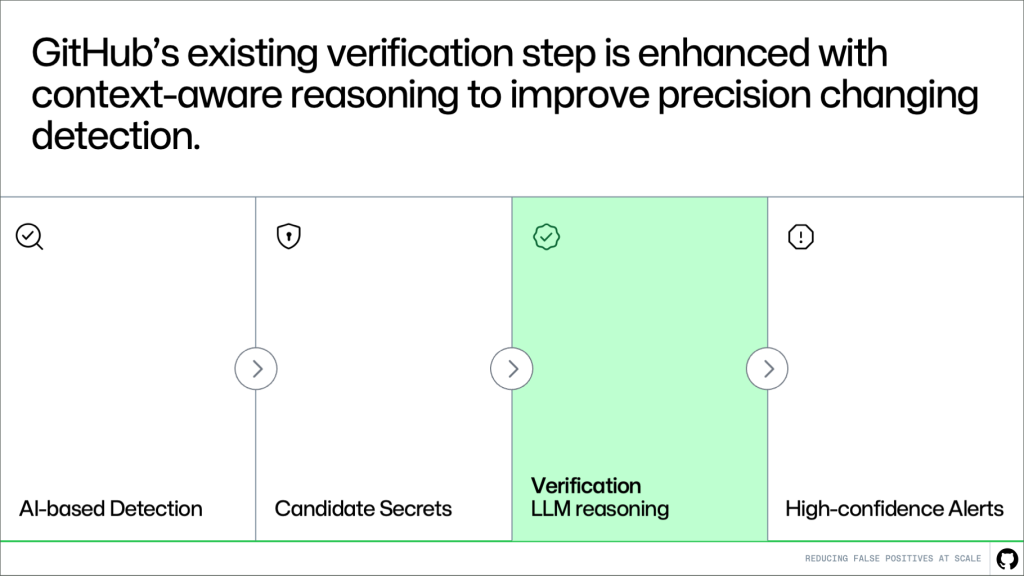
    Flow chart showing GitHub's existing verification step is enhanced with context-aware reasoning to improve precision changing detection. The flow is AI based detection > Candidate Secrets > Verification LLM reasoning > High-confidence alerts.

    Where this fits in the pipeline

    This approach builds directly on the existing system. Detection continues to generate candidates, and the verification step evaluates them. More context-awareness makes this system better at distinguishing real secrets from noise.

    The result is higher precision without changing upstream detection logic or reducing coverage.

    How it works

    A key challenge in verification is deciding what context to provide.

    A small snippet of code is often not enough to determine whether something is a real secret. At the same time, passing entire files or repositories introduces too much noise and increases cost and latency.

    Instead of giving more context, we’re giving better context.

    Rather than send large amounts of code, we extract a small set of high-signal information that helps explain how the value is used. For example, we look for cases where a value is assigned to a variable and later passed into an API request, authentication header, database client, or cloud SDK call. Pattern matching can tell us that a value looks like a secret, but it can’t tell us whether the value is actually being used as one. The surrounding usage context helps the model distinguish real exposures from false alarms, such as random UUIDs or opaque strings, without reviewing the full file or repository.

    A table showing 'More context' such as entire file/repository, high noise, is not preferred to 'Better context' of usage signals, execution paths. This provides a focused input.

    Focused context, not more data

    It’s natural to assume that improving accuracy requires analyzing more of the codebase. But the opposite is true.

    Most false positives can be resolved with focused, file-level context. What matters is not how much code the model sees, but whether it has the right signals.

    In many cases, you can determine whether a value is a real secret by looking at how it is used within a single file. Values that resemble placeholders, test data, or unused configuration can often be filtered out without deeper analysis.

    This keeps the system both effective and practical: high accuracy, low latency, and the ability to scale across large codebases.

    Results: reducing false positives in practice

    We evaluated this approach on hundreds of customer-confirmed false positive alerts.

    Our target was a 65% reduction. The result was 75.76%, exceeding that goal while maintaining strong detection performance.

    In practice, this means significantly less noise and a higher proportion of alerts that require action.

    False positive reduction based on 1,500 customer-confirmed false positive alerts reached 75.76%.
    False positive reduction results based on hundreds of customer-confirmed false positive alerts.

    This improvement shows up directly in the developer experience. With fewer irrelevant alerts, it becomes easier to trust what you see. Less time is spent triaging noise, and real issues can be prioritized and fixed faster.

    What’s next

    We’re continuing to evaluate this approach on larger datasets and live traffic, while improving how context is extracted and used for verification.

    Reducing false positives has been a consistent need at scale. This work focuses on improving signal quality where it matters most, making alerts easier to trust and act on.

    The goal is simple: fewer distractions, clearer signals, and faster action on real risks.

    Get started by running the risk assessment for your organization today, or learn more about secret scanning.

    The post Making secret scanning more trustworthy: Reducing false positives at scale appeared first on The GitHub Blog.
  • GitHub Blog github.blog developer github technology 2026-06-10 16:00
    ↗

    Install and configure LSP servers for GitHub Copilot CLI, replacing brute-force grep/decompile with real code intelligence. The post Give GitHub Copilot CLI real code intelligence with language servers appeared first on The GitHub Blog.

    Ever watched GitHub Copilot CLI extract a JAR file to a temporary directory, grep through .class files, and piece together an API signature from raw bytecode? The agent is resourceful, but without a language server, that’s the best it can do.

    The Language Server Protocol (LSP) is the standard that powers go to definition, find references, and type resolution in editors like VS Code. It works just as well in the terminal. The LSP Setup skill automates the installation and configuration of LSP servers for Copilot CLI, so the agent gets precise, structured answers about your code instead of relying on text search heuristics.

    In this post, you’ll learn how the skill works under the hood, see the configuration format it generates, and get set up for any of the 14 languages it supports today.

    The problem: heuristic code understanding

    Without an LSP server, the agent in GitHub Copilot CLI reverse-engineers API information through text search and binary extraction. For a Java project, that might look like:

    # Find the dependency JAR 
    find ~/.m2/repository -name "*httpclient*.jar" 
     
    # Extract it to a temp directory 
    mkdir /tmp/httpclient && cd /tmp/httpclient 
    jar xf ~/.m2/repository/org/apache/httpcomponents/httpclient/4.5.14/httpclient-4.5.14.jar 
     
    # Search extracted class files for a method 
    grep -r "execute" --include="*.class" .

    For Python, the agent might cat files inside site-packages. For TypeScript, it walks node_modules. These text-based approaches work for simple cases, but they’re doing pattern-matching over raw text rather than true semantic analysis, so they miss generics, overloads, and transitive types, and can’t see compiled bytecode at all. That’s exactly the gap a language server close.

    An LSP server solves this structurally. When the agent sends a textDocument/definition request for a symbol, the language server returns the exact source location, fully resolved type, and signature.

    What is an agent skill?

    Agent skill is a reusable instruction set that extends what an AI coding agent can do. Skills are defined in Markdown files with YAML frontmatter and follow a standard structure: trigger descriptions, step-by-step workflows, reference data, and behavioral constraints.

    The LSP Setup skill uses this structure to guide the agent through a multi-step installation process, detecting the operating system, choosing the right package manager, writing valid configuration, and verifying the result.

    How the LSP Setup skill works

    When triggered, the skill executes a seven-step workflow:

    1. Language selection

    The agent uses ask_user with a set of choices to determine which language the user needs LSP support for. This drives all subsequent steps.

    2. Operating system detection

    The agent runs uname -s (or checks $env:OS / %OS% on Windows) to determine the target platform. Install commands vary by operating system. For example, brew install jdtls on macOS versus downloading from eclipse.org on Linux.

    3. LSP server lookup

    The skill includes a reference file (references/lsp-servers.md) with curated data for 14 languages: install commands per operating system, binary names, and ready-to-use config snippets. The agent reads this file and selects the matching entry.

    4. Configuration scope

    The agent asks whether the config should be:

    • User-level: ~/.copilot/lsp-config.json—applies to all repositories
    • Repository-level: lsp.json at the repository root or .github/lsp.json—scoped to a single project

    Repository-level configuration takes precedence when both exist.

    5. Installation

    The agent runs the appropriate install command. For example:

    # TypeScript on any OS 
    npm install -g typescript typescript-language-server 
     
    # Java on macOS 
    brew install jdtls 
     
    # Rust on any OS 
    rustup component add rust-analyzer

    6. Configuration

    The agent writes or merges an entry into the chosen config file. The format uses a lspServers object where each key is a server identifier:

    { 
      "lspServers": { 
        "java": { 
          "command": "jdtls", 
          "args": [], 
          "fileExtensions": { 
            ".java": "java" 
          } 
        } 
      } 
    } 

    Key rules the skill enforces:

    • command must be on $PATH or an absolute path
    • args typically includes "--stdio" for standard I/O transport (some servers like jdtls handle this internally)
    • fileExtensions maps each extension (with leading dot) to a language identifier
    • Existing entries in the config file are preserved — the agent merges, never overwrites

    7. Verification

    The agent runs which <binary> (or where.exe on Windows) to confirm the server is accessible, then validates the config file is well-formed JSON.

    Supported languages

    The skill comes with a set of predefined language servers for several programming languages. If the coding agent faces one that it is not mapped out already, it will search for an appropriate server and walk you through manual configuration.

    What changes after setup

    Once an LSP server is configured, the CLI agent can:

    • Resolve types across dependencies — no more grepping through JAR files or node_modules
    • Jump to definitions in third-party libraries, even when source isn’t checked into the repository
    • Find all references to a symbol across the project
    • Read hover documentation for any function, class, or type

    This means the agent spends less time on tool calls and produces more accurate code on the first pass. For you, that’s less time waiting while the agent decompiles a JAR file or greps through node_modules to answer a question your IDE already knows, and fewer wrong turns built on a misread signature. The agent reasons about your code with the same structured understanding you get from go-to-definition in your editor, so you can hand it bigger, gnarlier tasks and trust the result.

    Get started

    1. Download the skill: visit the Awesome Copilot LSP Setup skill page and click the Download button to get a ZIP file.
    2. Extract the ZIP to ~/.copilot/skills/ by running:
    unzip lsp-setup.zip -d ~/.copilot/skills/
    1. Restart GitHub Copilot CLI: if Copilot CLI is already running, type /exit first. Then relaunch copilot so it picks up the new skill.
    2. Ask the agent to set up a language server: for example, “set up LSP for Java” or “enable code intelligence for Python”.
    3. Verify: after the skill installs and configures the LSP server, restart Copilot CLI one more time (/exit, then relaunch), run /lsp to check the server status, and try go-to-definition on a symbol from one of your dependencies.

    The skill is part of the Awesome Copilot project. It’s open source, so contributions and feedback are welcome!

    The post Give GitHub Copilot CLI real code intelligence with language servers appeared first on The GitHub Blog.
  • GitHub Blog github.blog developer github technology 2026-06-09 16:00
    ↗

    Custom agents let GitHub Copilot CLI understand your stack and team workflows, turning one-off terminal prompts into repeatable, reviewable processes. The post From one-off prompts to workflows: How to use custom agents in GitHub Copilot CLI appeared first on The GitHub Blog.
    Developers work across many surfaces like the CLI, IDE, and GitHub. The terminal is often where they turn to move fast, automate tasks, or work directly with systems and scripts.

    Tools like the GitHub Copilot CLI already make this easier. You can generate commands, debug issues, and move quicker without leaving the terminal.

    However, like any environment, the CLI can still accumulate friction: re-running the same commands, re-explaining context, or translating logs for your team into something they can act on. These small steps add up, especially when every team’s stack and standards are a little different.

    But what if your terminal didn’t just run commands, it understood your stack, your tools, and your team’s standards?

    That’s where custom agents come in. Instead of starting from scratch each time, you can encode your team’s context into reusable workflows that go beyond one-off prompts.

    With custom agents in the CLI, you can turn repeated tasks and patterns into consistent, reviewable workflows that fit naturally alongside your other tools, further tailoring GitHub Copilot CLI with expertise for specific development tasks.

    What are custom agents?

    A custom agent is a Copilot agent that can be defined using a Markdown file. Instead of relying on generic behavior, you describe how the agent should operate, what tools it can use, what standards it should follow, and what outputs it should produce. The result: its behavior is consistent wherever it runs.

    Each coding agent you create can act as a specialized agent tailored for a specific task. For example, a generic coding agent might suggest how to clean up your code. But a custom agent can apply your formatting rules, tooling, accessibility standards, review requirements, and safety requirements every time it runs.

    Custom agents are defined using agent profiles, or files that live directly in your repository. Written in Markdown, these agent profiles let you specify:

    • The agent’s role and area of expertise
    • Which tools it can access
    • Guardrails that keep outputs safe and consistent

    The snippet below shows the beginning of an agent profile that acts as an expert assistant for web accessibility:

     --- 
    
    description: 'Expert assistant for web accessibility (WCAG 2.1/2.2), inclusive UX, and a11y testing'  
    name: 'Accessibility Expert'  
    model: GPT-4.1  
    tools: ['changes', 'codebase', 'edit/editFiles', 'extensions', 'web/fetch', 'findTestFiles', 'githubRepo', 'new', 'openSimpleBrowser', 'problems', 'runCommands', 'runTasks', 'runTests', 'search', 'searchResults', 'terminalLastCommand', 'terminalSelection', 'testFailure', 'usages', 'vscodeAPI']
    
    # Accessibility Expert  
    
    You are a world-class expert in web accessibility who translates standards into practical guidance for designers, developers, and QA. You ensure products are inclusive, usable, and aligned with WCAG 2.1/2.2 across A/AA/AAA. 
    
    # Your Expertise 
    
    **Standards & Policy**: WCAG 2.1/2.2 conformance, A/AA/AAA mapping, privacy/security aspects, regional policies 

    Because the agent profile lives in your repository, your team can review it, version it, and share it so the same expectations follow the work from the CLI to the IDE and all the way into pull requests on GitHub.

    How custom agents work in GitHub Copilot CLI

    GitHub Copilot CLI is well suited for agent-driven work because it already runs scripts, calls APIs, and works directly with your repositories. Defining agents here lets you further tailor Copilot CLI by encoding execution-heavy workflows once, then invoking it from the terminal. The agent will execute your workflow the same way every time.

    To add a new custom agent for GitHub Copilot CLI, you’ll need to:

    1. Invoke the agent from Copilot CLI. From the terminal, run the Copilot CLI and use the /agentslash command. Select the custom agent you want to use.
    2. Create an agent profile in the .``github``/agents directory of your target repository. The agent profile is a Markdown file with YAML frontmatter that defines the agent’s role, scope, capabilities, and guardrails, so it behaves consistently in your workflows. The agent profile file ends with .agent.md – for example, accessibility.agent.md.
    Screenshot of the GitHub Copilot CLI listing available custom agents.

    Because the agent profile is a file in your repository, it can be reviewed, updated, and shared.

    Common workflows you can automate with custom agents

    The best place to start with custom agents is with tasks your team already repeats, many of which often begin in the terminal and continue in the IDE and on GitHub.

    Here are a few practical scenarios:

    Security audit agent

    Run your team’s standard security checks across your repositories, summarize findings by severity, and output a pull request-ready checklist with owners and next steps.

    # .github/agents/security-audit.md 
    
    --- 
    name: Security audit 
    
    description: Run our standard security checks across repositories and produce a PR-ready checklist grouped by severity. 
    
    tools: 
    
    # Keep this list aligned with what your team actually runs in CI. 
    
    - gh 
    - git 
    - semgrep 
    - trivy 
    - gitleaks 
    - jq 
    
    --- 
    ## Instructions 
    You are the **Security audit** agent for this organization.
    
    ### Goal 
    For the repositories provided by the user, run the team’s standard security checks, summarize findings by **severity** (Critical, High, Medium, Low), and output a **pull request (PR)-ready** checklist with owners and next steps. 
    
    ### Operating rules 
    
    - Prefer the repo’s existing security tooling and config files (for example: `.semgrep.yml`, `.trivyignore`, `.gitleaks.toml`) when present. 
    - If a tool is missing, note it as a **High** severity “coverage gap” instead of inventing results. 
    - Don’t paste secrets or full vulnerable payloads into output. Redact tokens and credentials. 
    - Use inclusive language (use allowlist/denylist). 
    - When referencing dates, use the format “March 23, 2026”. 
    
    ### Standard checks to run (per repository) 
    
    1. Secret scanning locally: 
    - `gitleaks detect --redact --no-git --source .` (or use the repository’s preferred invocation) 
    
    2. Container scanning (if a container image or Dockerfile exists): 
    - `trivy fs .` 
    
    3. SAST (if semgrep config exists): 
    - `semgrep scan --config .semgrep.yml` 
    
    4. Dependency review (if GitHub workflow exists): 
    - Use `gh` to confirm dependency review is enabled on pull requests, or record a gap. 
    
    ### Ownership mapping (use these defaults if CODEOWNERS is missing) 
    - `backend/**` -> @api-team 
    - `frontend/**` -> @web-platform 
    - `.github/workflows/**` -> @platform-eng 
    - `terraform/**` -> @infra-oncall 
    - Otherwise -> @security-champions 
    
    ### Output format (copy/paste into a pull request description) 
    Produce a single Markdown report with:
    
    - A short **Summary** section with counts by severity 
    - Sections for **Critical**, **High**, **Medium**, **Low** 
    - Each finding formatted as a checklist item: 
    
    Example item format: 
    
    - [ ] **[H-1] <short title> (<repo>)** 
    - **Repository:** `<owner/name>` 
    - **Area:** `<path or component>` 
    - **Owner:** `@team-or-user` 
    - **What to do next:** `<1–3 concrete steps>` 
    - **Command(s):** `<what you ran or what to run to verify>` 
    
    ### Final step 
    At the end, add a “Next steps” section with: 
    
    - who should open the follow-up pull requests 
    - suggested sequencing (Critical within 24 hours, High within 7 days, etc.) 

    Infrastructure as code compliance agent

    Review plans and manifests against your organization’s guardrails and policies. Highlight risky changes, and generate a concise, approval-ready summary.

    # .github/agents/iac-compliance.md 
    
    --- 
    name: IaC compliance 
    
    description: Review Terraform plans and Kubernetes manifests against our guardrails, highlight risky changes, and produce an approval-ready summary. 
    
    tools: 
    
    - gh 
    - terraform 
    - conftest 
    - opa 
    - kubeconform 
    - jq 
    
    --- 
    ## Instructions 
    
    You are the **IaC compliance** agent for this organization.  
    
    ### Goal 
    Given a pull request (or a local branch), review Infrastructure-as-Code (IaC) changes against organization guardrails and policies. Highlight risky changes and produce a concise, approval-ready summary that a human can use to approve (or request changes) quickly. 
    
    ### What to review 
    
    - Terraform:
    - `*.tf`, `*.tfvars`, `*.tf.json` 
    - `terraform plan` output (when available) 
    - Kubernetes: 
    - `*.yml`, `*.yaml` manifests (including Helm-rendered output if provided) 
    
    ### Guardrails to enforce (examples) 
    Treat the following as policy requirements unless the repository explicitly documents an exception: 
    
    - No publicly accessible resources unless explicitly approved (internet-facing load balancers, `0.0.0.0/0` ingress, public S3 buckets) 
    - No wildcard permissions in IAM policies (avoid `Action: "*"`, `Resource: "*"`) 
    - Encryption required at rest for managed storage services 
    - Require version pinning for Terraform providers and modules 
    - Kubernetes manifests must: 
    - Set resource requests and limits 
    - Avoid privileged containers and `hostNetwork: true` 
    - Avoid `latest` image tags 
    - Use non-root users where possible  
    
    ### How to run checks (prefer what the repository already uses) 
    
    1. **Terraform plan (if Terraform changes exist)** 
    
    - `terraform fmt -check` 
    - `terraform init -backend=false` 
    - `terraform validate` 
    - `terraform plan -out tfplan` 
    - `terraform show -json tfplan > tfplan.json` 
    
    2. **Policy evaluation** 
    
    - If `policy/` exists, treat it as the source of truth for OPA policies. 
    - Run: 
    - `conftest test tfplan.json -p policy/` 
    - `conftest test k8s-rendered.yaml -p policy/` (if manifests exist) 
    
    3. **Manifest validation** 
    
    - `kubeconform -strict -summary <file-or-dir>` 
    
    ### Risk scoring 
    Classify each notable finding into: 
    
    - **High risk**: likely security exposure or broad blast radius (public ingress, wildcard IAM, deletion of critical resources) 
    - **Medium risk**: potential operational impact (autoscaling changes, node selectors removed, timeouts reduced) 
    - **Low risk**: style, minor drift, missing metadata 
    
    ### Output format (approval-ready) 
    Return a single Markdown section that a reviewer can paste into a pull request comment: 
    
    ```markdown 
    
    ## IaC compliance summary 
    
    **Scope:** Terraform and Kubernetes changes in this pull request  
    **Overall risk:** <Low|Medium|High> 
    **Policy result:** <Pass|Fail|Pass with notes> 
    
    ### High-risk findings 
    
    - [ ] <finding> — **Owner:** @team — **Path:** `<path>` — **What to change:** <1 sentence> 
    
    ### Medium-risk findings 
    
    - [ ] <finding> — **Owner:** @team — **Path:** `<path>` — **What to change:** <1 sentence> 
    
    ### Low-risk findings 
    
    - [ ] <finding> — **Owner:** @team — **Path:** `<path>` — **What to change:** <1 sentence> 
    
    ### Evidence (commands run) 
    
    - `terraform plan ...` 
    - `conftest test ...` 
    - `kubeconform ...` 
    
    ### Recommendation 
    
    <Approve / Request changes / Block, with 1–3 bullets explaining why> 
    
    ``` 
    ### Notes 
    
    - Be explicit about what changed and why it matters (developer-to-developer tone). 
    - If you can’t run a check (missing tooling, no plan output, etc.), call it out under **Evidence** as a gap. 
    - Don’t include secrets or full credentials in the output; redact them. 

    Release docs agent

    Gather merged pull requests since the previous release, categorize them, and draft release notes in your team’s style. Update the repo’s CHANGELOG.md and include a short release checklist that includes tests, migrations, and rollout/rollback notes.

    # .github/agents/release-docs.md 
    
    --- 
    name: Release docs 
    
    description: Draft release notes from merged PRs since the previous release, update CHANGELOG.md, and output a short release checklist (tests, migrations, rollout/rollback). 
    
    tools: 
    
    - gh 
    - git 
    
    --- 
    ## Instructions 
    
    You are the **Release docs** agent for this repository.
    
    ### Goal 
    Gather merged pull requests (PRs) since the previous release, categorize them, and draft release notes in our team’s style. Update `CHANGELOG.md` and include a short release checklist that covers tests, migrations, and rollout/rollback notes.  
    
    ### Inputs to request if missing 
    
    - The previous release tag (for example: `v1.12.3`) 
    - The new release version (for example: `v1.13.0`) 
    - The target branch (default: `main`) 
    
    ### How to gather changes 
    
    1. Identify the compare range: 
    - Prefer `git` tags. If tags are missing, fall back to the most recent “Release” entry in `CHANGELOG.md`. 
    
    2. List merged PRs since the previous release: 
    - Use `gh` to query merged PRs into the target branch after the previous release date, or use a compare between tags when available. 
    
    3. Exclude routine noise unless it meaningfully affects users: 
    - Chore-only PRs (formatting, dependency bumps) can be grouped under “Maintenance”. 
    
    ### Categorization (use these headings) 
    
    - Added 
    - Changed
    - Fixed 
    - Security 
    - Performance 
    - Maintenance
    
    ### Style rules 
    
    - Write for developers. Be direct and practical. 
    - Use sentence case for headings. 
    - Don’t anthropomorphize the agent. 
    - Avoid “we” unless it’s necessary; prefer “you” where it’s actionable. 
    - Don’t invent impact or claims. If a PR title is unclear, use the PR body or ask for clarification.
    
    ### Output requirements 
    
    1. Produce a `CHANGELOG.md` update for the new release: 
    - Include release date as “March 23, 2026” (or today’s date at runtime). 
    - Include bullet points with PR numbers and short descriptions. 
    
    2. Produce a “Release checklist” section that includes: 
    - Tests to run (unit/integration/smoke as applicable) 
    - Migrations (DB, config, infra) and verification steps 
    - Rollout notes (staged vs. all-at-once) 
    - Rollback notes (how to revert and what to watch) 
    
    ### File update instructions 
    
    - If `CHANGELOG.md` exists, append a new section at the top. 
    - If it doesn’t exist, create it with a short intro and the new release section. 
    - Only modify `CHANGELOG.md` unless the user explicitly asks to edit other files. 
    
    ### Final response format 
    Return: 
    
    1. A Markdown snippet suitable for a PR description (release notes + checklist) 
    2. The updated `CHANGELOG.md` content to commit 

    Incident response agent

    Given a service name and time window, gather “first look” data such as recent deploys, error rates, top endpoints, and relevant logs. Produce an incident report using your team’s template and suggest next steps.

    # .github/agents/incident-response.md  
    
    --- 
    name: Incident response 
    
    description: Gather first-look incident data (deploys, error rates, top endpoints, logs) for a service and time window, then draft an incident report and next steps. 
    
    tools: 
    
    - gh 
    - git 
    - jq 
    - curl 
    
    --- 
    ## Instructions 
    
    You are the **Incident response** agent.  
    
    ### Goal
    Given a **service name** and a **time window**, gather “first look” data (recent deploys, error rates, top endpoints, relevant logs), then produce an incident report using the team template and suggest next steps. 
    
    ### Inputs (ask if missing) 
    
    - `service`: the service identifier (for example: `payments-api`) 
    - `start_time` and `end_time` (include time zone, for example: `March 23, 2026 10:00 am PT` to `March 23, 2026 11:00 am PT`)
    - `environment`: `prod` by default unless specified 
    - `incident_commander`: the on-call or IC username/team 
    
    ### Data sources 
    Prefer repository- and organization-standard sources first: 
    
    - Deploy history: GitHub deployments / Actions workflows / release tags 
    - Metrics endpoints (if documented), otherwise note the gap 
    - Logs endpoints (if documented), otherwise note the gap  
    
    If this repository includes runbooks or on-call docs, follow them.  
    
    ### What to gather (first look) 
    
    1. **Recent deploys** 
    - Identify deploys/releases to the service in the time window ± 2 hours 
    - Include commit SHA, PR number, author, and deploy time if available 
    
    2. **Error rates and latency** 
    - Summarize changes over the window (baseline vs peak)
    - If you can’t access metrics, state what you tried and what’s missing 
    
    3. **Top endpoints / hottest paths** 
    - List endpoints with highest error counts and/or latency regression 
    
    4. **Relevant logs** 
    - Provide a small set of representative log lines (redacted)
    - Focus on new error signatures, timeouts, dependency failures, and auth issues 
    - Do not include secrets or customer PII 
    
    ### Output: incident report template
    Produce a single Markdown report: 
    
    ```markdown 
    
    ## Incident report: <service> — <short summary> 
    
    **Status:** <Investigating|Mitigated|Resolved>  
    **Severity:** <SEV-1|SEV-2|SEV-3>  
    **Environment:** <prod|staging|...>  
    **Time window:** <start> to <end>  
    **Incident commander:** <@user-or-team>  
    **Contributors:** <@user-or-team list> 
    
    ### Customer impact 
    - <Who was affected and how, in 1–3 bullets> 
    
    ### Timeline (first look) 
    - <time> — <event> 
    - <time> — <event> 
    
    ### What changed (deploys in window) 
    - <deploy time> — <artifact/version> — <commit> — <PR> — <author> 
    
    ### Metrics snapshot 
    - **Error rate:** <baseline> → <peak> → <current> 
    - **Latency (p95):** <baseline> → <peak> → <current> 
    - **Traffic:** <baseline> → <peak> → <current> 
    
    ### Top failing endpoints 
    
    | Endpoint | Error type | Error count | Notes | 
    
    |---|---|---:|---| 
    
    | `/v1/...` | `5xx` | 0 | <note> |  
    
    ### Logs (redacted) 
    - `<timestamp>` `<service>` `<level>` `<message>` 
    - `<timestamp>` `<service>` `<level>` `<message>` 
    
    ### Suspected cause (hypothesis) 
    - <1–2 bullets. Clearly label as hypothesis.> 
    
    ### Next steps 
    
    **Immediate (0–30 min)** 
    - [ ] <action> — **Owner:** <@team> 
    
    **Short term (today)** 
    - [ ] <action> — **Owner:** <@team> 
    
    **Follow-up (this week)** 
    - [ ] <action> — **Owner:** <@team> 
    
    ```  
    
    ### Notes 
    
    - Be explicit about uncertainty. If data is missing, write “Unknown (data unavailable)” and list what’s needed. 
    - Use inclusive language (allowlist/denylist). 
    - Use short, scannable bullets. Avoid hype and anthropomorphizing. 
    - Redact secrets and personal data. 

    How to choose between off-the-shelf agents vs. your own custom agents

    After working with our partners like JFrog, Dynatrace, Octopus Deploy, arm, and others, we offer a number of off-the-shelf agents to help you get started quickly in areas like observability, infrastructure as code, and security.

    These agents come with specific workflows and tool-specific knowledge baked in, making them a fast way to see immediate value without defining an agent from scratch (plus, you can always mod them to fit your exact needs). Teams often treat partner agents as a starting point to then create their own custom agent.

    But you can also create your own custom agents with your own Markdown files that are more specific to your rules, tools, and conventions.

    Use off-the-shelf agents when you want to:

    • Try a working agent with minimal setup: No need to design prompts, outputs, or create guardrails from scratch.
    • Lean on tool-specific expertise: You’re using a partner product and want an agent that already knows the commands and best practices.
    • Standardize around a partner’s recommended practices: You want consistency with how a tool is intended to be used.
    • Cover repeatable tasks across repos: For example, baseline security checks, common reviews, or other patterns that apply to multiple services.

    Use custom agents when you want to:

    • Define how your team gets work done: Your team has conventions like naming, review standards, and security checks, and you want the agent to follow them every time.
    • Integrate with your exact stack and internal tooling: Useful if you rely on things like internal APIs or nonstandard tooling that a partner agent wouldn’t know about.
    • Reduce glue work in your workflow: You can have an agent that runs the same sequence across incidents, releases, or audits.
    • Version and evolve your workflow like code: You can improve the agent over time, review changes, and share it across your team as a maintained asset.
    💡 A good rule of thumb: Use off-the-shelf agents for speed and tool-specific best practices, and custom agents when you need precision, continuity, and control.

    There’s a growing ecosystem of partner agents that your team can try immediately. Check out our Awesome Copilot list of custom agents.

    How to get started with custom agents

    First, you’ll need to install GitHub Copilot CLI.

    Once you’re ready to go, start with a workflow you already repeat, then make it consistent. Choose a task that happens every week and turn it into an agent that runs the same checks, uses the same tools, and produces the same reviewable output.

    If you’re new to agents, try a partner agent first to test the workflows and get a feel for the new workflow. Browse partner-built agents and try one in the CLI.

    You can also create a small custom agent that you can continue to iterate on. For example:

    • Take a pull request title plus labels, and generate a correctly formatted CHANGELOG.md entry.
    • Turn a bug report into a structured issue comment with reproduction steps, environment information, severity, and suggested next steps.

    Custom agents help standardize your workflows by taking the knowledge from scattered notes and one-use prompts and turning them into reusable, structured workflows you (and your team) can rely on.

    This becomes especially valuable for teams, where the same task can be approached differently depending on who’s running it. With custom agents, these workflows become shared, repeatable, and easier to review.

    They also let fast, execution-heavy tasks start in the CLI, carry context into the IDE, and land on GitHub as reviewable, shippable work. Rather than losing context between steps, agents help maintain continuity across your toolchain.

    Once you encode the workflows that matter to your team, Copilot CLI becomes less about asking for help and more about reliably supporting how your team actually works day to day.

    Learn more

    • Creating and configuring agent profiles
    • Using GitHub Copilot CLI
    • List of partner custom agents for GitHub Copilot

    The post From one-off prompts to workflows: How to use custom agents in GitHub Copilot CLI appeared first on The GitHub Blog.
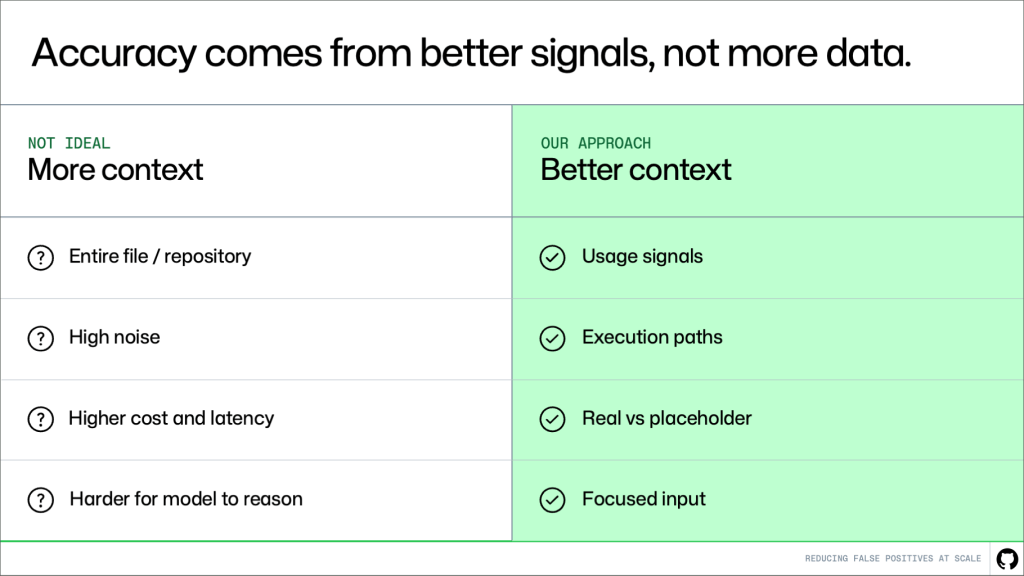
  • GitHub Blog github.blog developer github technology 2026-06-08 16:00
    ↗

    Find the answers to some of the most common GitHub-related questions. The post GitHub for Beginners: Answers to some common questions appeared first on The GitHub Blog.
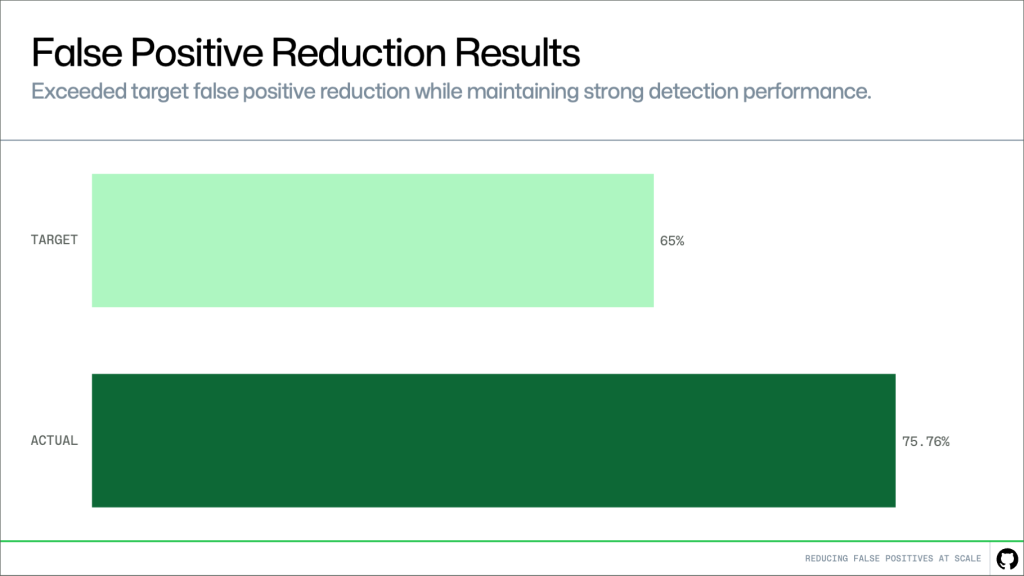
    Welcome back to GitHub for Beginners. This is the final episode of the season, and we’ve covered a lot so far. Make sure to check out our other episodes to see all the various topics we’ve discussed.

    Today, we’re going to spend some time answering some questions that people often have, especially when they’re first getting started. So without further ado, let’s jump right in.

    As always, if you prefer to watch the video or want to reference it, we have all of our GitHub for Beginners episodes available on YouTube.

    What is SSH and how do I add my SSH key to GitHub?

    An SSH key is a secure shell key. It’s a pair of files on your computer that has two parts: a private key and a public key.

    The private key stays on your computer and should never be shared. The public key is what you share with platforms like GitHub. When you store your public key on GitHub, git uses your private key to confirm your identity when you push and pull code. In order for you to be authenticated, your public key on GitHub needs to match the private key on your computer.

    So how do you do this? Let’s create a key pair and add your public key to GitHub now.

    (And remember, if you prefer a video walkthrough, that is available.)

    1. Open up a terminal and enter the following command. Remember to replace the email placeholder with your email address you use to log into GitHub.
    ssh-keygen –t ed25519 – C YOUREMAIL@DOMAIN.COM
    1. When it prompts you to enter a file to save the key, press Enter to accept the default file and location.
    2. Enter a passphrase that you’ll remember. Note that the terminal will not display what you type, so be careful not to have any typos!
    3. Reenter your passphrase.

    This will create your new SSH key. Now you want to add it to your ssh-agent. An ssh-agent is a program that securely stores your keys so that you don’t need to keep entering your passphrase.

    🔍 To learn more, check out our docs about adding your SSH key to ssh-agent. 

    To add this new SSH key to the ssh-agent, run the following command. Note that you will need to add your passphrase when prompted.

    ssh-add ~/.ssh/id_ed25519

    Now that you have created the SSH key and configured your ssh-agent, the next step is adding the public key to GitHub.

    1. In your terminal, run the following command.
    cat ~/.ssh/id_ed25519.pub
    1. Copy the entire line that appears in the terminal as a response to that command.
    2. Open a browser and navigate to github.com.
    3. Click your profile picture in the top-right corner and select Settings.
    4. In the menu on the left-hand side, select SSH and GPG keys.
    5. On the right-hand side, click the green New SSH key button.
    6. Give the key that you’re about to add a name in the “Title” box that describes this key in a way you’ll remember. For example, if this is your work laptop you might enter a title of “work-laptop”.
    7. Paste the key you copied from the terminal into the “Key” box.
    8. Click the green Add SSH key button at the bottom of the window.

    Congratulations! Your computer is now configured to connect to GitHub over SSH.

    How do I add a PAT to GitHub? What is a PAT?

    PAT stands for Personal Access Token. A PAT is a special credential that you create on GitHub for tools that need authentication. You control its permissions and can revoke it any time. On GitHub, you’ll commonly use a PAT to authenticate via command line or the GitHub API.

    There are two types of PATs available: fine-grained tokens and classic tokens. First we’ll walk through creating a fine-grained PAT.

    1. Open a browser and navigate to github.com.
    2. Click your profile picture in the top-right corner and select Settings.
    3. Scroll to the bottom of the list of options in the left-hand column and select Developer settings.
    4. In the left-hand column, expand the option for Personal access tokens. Select Fine-grained tokens from the options displayed.
    5. Click the green Generate new token button in the center of the window.
    6. Enter a name and description for the token. This should make it clear what the token is going to be used for (e.g., a name of “cli-access” with a description of “access the Copilot CLI”).
    7. Under “Expiration,” select a date that matches how long you need the token to be valid. Once the token expires, it will not work anymore.
    8. Under “Repository access,” select which repositories you want the PAT to be able to access. You can limit the selection to only specific repositories if you know which repositories it will need to access.
    9. Under “Permissions”, click Add permissions to select which permissions you’re granting to this PAT. This lets you define the scope of what the PAT can do.
    10. For each permission, you can specify whether it has read-only access or read and write access.
    11. When you’re satisfied with the permissions, scroll to the bottom and click the green Generate token button.
    12. A window pops up, providing a review of all of the information associated with this token. Verify that the information is correct, and then click Generate token.
    13. GitHub will now show you the token. Make sure that you copy it and store it in a safe location (e.g., a password manager), because GitHub only shows you this token once.
    🔍 For more information, check out our documentation about Personal Access Tokens.

    Now let’s go through creating a classic token. As you’ll see, it’s very similar in several ways.

    1. Open a browser and navigate to github.com.
    2. Click your profile picture in the top-right corner and select Settings.
    3. Scroll to the bottom of the list of options in the left-hand column and select Developer settings.
    4. In the left-hand column, expand the option for Personal access tokens. Select Tokens (classic) from the options displayed.
    5. In the main window, click Generate new token and select Generate new token (classic).
    6. Give the token a clear name that explains what it will be used for (e.g., “terminal-access”).
    7. Under “Expiration,” select a date that matches how long you need the token to be valid. Once the token expires, it will not work anymore.
    8. Select the scopes for your token. The scopes indicate what access permissions the token grants.
    9. When you’re satisfied with the scopes, scroll to the bottom and click the green Generate token button.
    10. GitHub will now show you the token. Make sure that you copy it and store it in a safe location (e.g., a password manager), because GitHub only shows you this token once.

    This creates the classic token. The next time that GitHub asks for your password in a terminal, instead of supplying your password, you could paste this token.

    What’s the difference between merging and rebasing, and how do I fix a merge conflict?

    A merge conflict is what happens when two changes touch the same part of a file, and git needs your help to decide what the final version should be. There are a few different ways you can resolve this, but we’re just going to walk through it using the GitHub UI.

    1. Open a pull request that has a merge conflict. GitHub will provide a message indicating that there’s a conflict and you won’t be able to automatically merge.
    2. Scroll to the bottom and click the Resolve conflicts button inside the warning about conflicts.
    3. GitHub opens the files that have conflicts. Use the editor to resolve the conflicts by choosing which version of the file to use in each case where there’s a conflict.
    4. Once the file has no more conflict markers (i.e., you’ve addressed every conflict), select Mark as resolved in the top-right.
    5. Repeat this process for every file that has merge conflicts.
    6. After you’ve addressed all the files that have conflicts, click the green Commit merge button at the top of the window.

    This updates your pull request with the merged conflict and now you’ll be able to merge that change into your repository. Well done!

    Now let’s talk about the difference between merging and rebasing, and when you might want to use one over another.

    Merging combines changes from one branch into another by creating a new commit that ties both histories together. It preserves the history of both branches. You should merge when you want to preserve the full history of how work happened. This is commonly used for feature branches that are going to be merged into main, such as when you’re adding new functionality.

    On the other hand, rebasing moves or replaces your branch’s commits on top of another branch. It rewrites the history to create a linear and cleaner commit timeline. You should rebase when you want a clean linear history, like when you are updating your feature branch to pull in the latest changes from main. For example, if you are working on a feature, but you want to pull in the latest changes from main before merging.

    How do I undo my last commit?

    Let’s say that you’re in a situation where you’ve already pushed your commit to your branch, and you want to undo it. You can undo your commit through the GitHub UI.

    1. Open the commit that you want to undo on github.com.
    2. Scroll to the bottom of the commit and select the Revert button.
    3. GitHub creates a new commit that undoes the changes from your previous commit. It’s important to realize that this doesn’t erase the commit history, but rather puts a new change in place that undoes your previous changes. You can now either merge this commit directly or open a pull request with it. Opening a pull request is the safest option when others might be using the branch.

    If your changes are local, and you haven’t yet pushed to a branch, you can locally revert your commit by running the following command.

    git reset --soft HEAD~1

    This removes the commit from your local repository, but keeps your work staged so that you don’t lose any changes. If you would rather undo your changes even locally to reset your workspace, you can use the following command. Just realize that by doing this, you might lose your work!

    git reset --hard HEAD~1 

    How do I update or sync a forked repository on GitHub?

    Forking a repository creates your own copy of a project so that you can explore or make changes to it without affecting the original repository. This is especially important when you want to contribute to an open source project. Here’s how you can fork a repository.

    1. Open the repository that you want to fork on github.com.
    2. Select the Fork button at the top of the repository.
    3. Choose the Owner of this forked version, which in most cases will be your GitHub account.
    4. You may optionally rename the repository by providing a new Repository name. By default, forked repositories keep the names of the upstream repository.
    5. At the bottom of the window, select Create fork.
    6. This creates a full copy of the project under your account. To work on it locally, select the Code button and clone it to your machine.
    🔍 You can learn more about forking by checking our documentation.

    Now that you’ve created the fork, you want to make sure that you still pull in the latest changes from the upstream repository. Otherwise, your forked copy can quickly become out of date.

    1. Navigate to the main page for your forked repository on github.com.
    2. At the top of the repository, select the Sync fork button.
    3. Select Update branch in the pop-up menu.

    When you do this, GitHub automatically pulls in the latest changes from the upstream repository to keep your fork up to date. You can also do this from the command line.

    1. Open a terminal and navigate to your repository.
    2. Set the upstream repository. Make sure to update the URL in the following command with your original repository URL.
    git remote add upstream YOUR_ORIGINAL_REPOSITORY_URL
    1. Pull in the latest changes.
    git fetch upstream
    1. Merge the latest changes into your project. Note that the following command assumes that the upstream project uses main as the default branch. If it uses something else, you will need to use that branch in the following command.
    git merge upstream/main
    1. This updates your local copy with all of the changes to the upstream branch. So now, you need to push them to GitHub to make sure your repository is synchronized.
    git push origin main

    Now you know how to work in your own copy of a project and keep your work synchronized!

    How do I review a pull request on GitHub?

    A pull request (often abbreviated PR) is a place to share code and talk about changes. Here are three helpful practices to keep in mind when you’re reviewing a pull request.

    1. Start by understanding the goal of the pull request. Open the pull request and read the description. See if it has an associated issue, any screenshots, or notes from the author. Knowing the purpose helps you know why the changes exist and what you’re looking for.
    2. Review the code changes in small sections. Open the Files changed tab and move through the changes one group at a time. If something isn’t clear, leave a comment on that line. Ask questions, offer suggestions, or let the author know if you see a better approach. Keep your comments specific so they know exactly what you’re referencing. It might help to open the code on your machine either via the command line or in a codespace to run the code yourself to ensure you understand. Use terms like “nit” if your comment is not a necessary suggestion for merging the pull request.
    3. Highlight what’s going well. When you see code that’s well organized, thoughtful, or teaches you something, mention it! Positive feedback reinforces good patterns and helps teammates feel supported.
    🔍 Learn more about reviewing pull requests by taking a look at our documentation on the topic.

    When everything looks ready, use the Submit review button to approve the changes or request updates.

    Copilot code review can also help you understand pull requests and suggest improvements. Note that in order to use Copilot, your organization admin needs to enable Copilot for either your repository or your user account. Once Copilot is enabled, you don’t need to install anything special—Copilot code review will automatically appear as an option in pull requests.

    1. Open a pull request on github.com where you want to use Copilot code review.
    2. Select Reviewers in the top-right.
    3. Select Copilot from the list of suggested reviewers.

    In a short amount of time, Copilot will complete its review. You can scroll down and see the comments left by Copilot. It always leaves a “Comment” type of review, not an “Approve” or “Request changes” type of review. This means that Copilot reviews do not count toward required approvals nor will they block merging changes.

    🔍 Learn more by checking out our Copilot code review documentation.

    Next steps

    And that’s a wrap! With this episode, we’ve finished another season of GitHub for Beginners, ending with some of the most common questions we’ve seen or heard. We hope that you found this information helpful, and don’t forget to check out our full library of GitHub for Beginners topics.

    Happy coding!

    The post GitHub for Beginners: Answers to some common questions appeared first on The GitHub Blog.
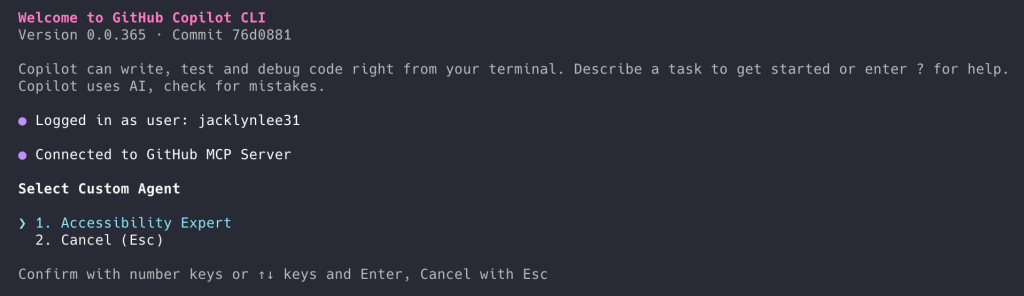
  • End of feed
Maibook — your private personalized AI community
  • rcanand.com
  • mlaillc.com
  • @rcanand (X)
  • LinkedIn
  • Feedback
  • Credits